You bought wireless earbuds, and the instructions say “connect via Bluetooth.” Your friend wants to play music in your car, and says “just connect with Bluetooth.” Your phone’s settings show a strange blue symbol that looks like a sideways B. What is all of this? Do not worry. Bluetooth is one of the simplest wireless technologies to use, once someone explains it in plain words. In this guide, I will tell you exactly what Bluetooth is, how it differs from Wi-Fi, and how to connect your devices step by step. No technical background needed.
Bluetooth, in one simple sentence
Bluetooth is a way for two nearby devices to talk to each other wirelessly, without any cables and without the internet. It uses invisible radio waves to send sound, files, or commands over a short distance, usually up to about 10 metres. Think of it like two people whispering to each other in the same room. They do not need a telephone network; they just need to be close enough to hear. Your phone and your earbuds work the same way: they whisper to each other directly through the air.
The strange blue symbol is actually a combination of two ancient runic letters, but you do not need to remember that. Just know: blue B-like symbol means Bluetooth. The official Bluetooth website at bluetooth.com has more background if you ever want it.
Bluetooth versus Wi-Fi: what is the difference
Beginners often mix these up, so let us make it crystal clear. Wi-Fi connects your device to the internet through a router. It has a longer range, covering your whole home, and it is made for moving large amounts of data, like streaming videos and browsing websites. If that side of things is still fuzzy, read our simple explanation of what Wi-Fi is and how it works next.
Bluetooth connects two devices directly to each other, with no internet and no router involved. It has a short range, about one room, and it is made for smaller jobs, like sending music to earbuds or a speaker. Here is a simple way to remember: Wi-Fi connects you to the internet; Bluetooth connects your gadgets to each other. Your wireless earbuds do not need the internet to play music from your phone, they just need Bluetooth.
What can you connect with Bluetooth?
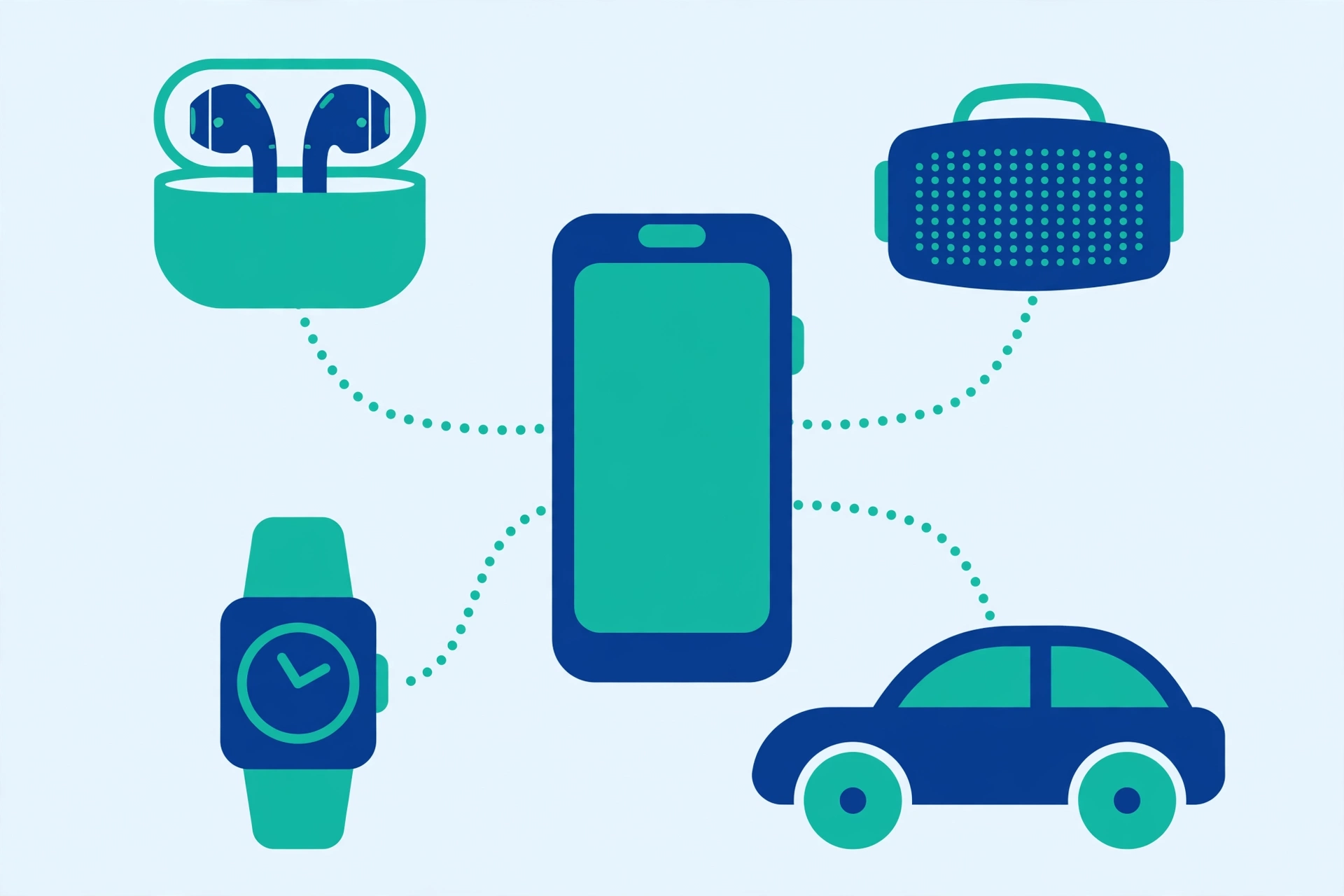
Once you understand pairing, a whole world of wireless accessories opens up. The most common ones are:
- Wireless earbuds and headphones, for music and calls without tangled wires
- Bluetooth speakers, for playing music louder at home or at a picnic
- Your car, so you can play your phone’s music through the car speakers and take calls hands free
- Smartwatches and fitness bands, which sync your steps and notifications with your phone
- Keyboards and mice, useful if you connect your phone or tablet to a bigger screen
- Another phone, for sending a photo or file directly when there is no internet around
If a gadget says “wireless” on the box and it is meant to be used near your phone, it almost certainly uses Bluetooth.
How to pair your phone with a Bluetooth device, step by step
Pairing is simply the process of introducing two devices to each other for the first time. After that, they remember each other and reconnect automatically. Here is how to do it on Android. iPhones work almost the same way.
- Put the accessory in pairing mode. This is the one step people miss. Your earbuds or speaker must be made “discoverable” before your phone can find it. Usually you press and hold the power button, or a dedicated Bluetooth button, until a light starts blinking. Check the small manual that came in the box; it always explains this. The blinking light means “I am ready to pair.”
- Open Bluetooth settings on your phone. Go to Settings, then tap Bluetooth. You can also swipe down from the top of the screen and long-press the Bluetooth icon. Make sure the Bluetooth switch at the top is turned ON.
- Wait for your device to appear. Your phone will scan the area and show a list of nearby Bluetooth devices under “Available devices.” This takes a few seconds. If your earbuds do not appear, make sure they are still blinking and close enough to the phone, within a metre or two.
- Tap the device name. Tap the name of your earbuds or speaker in the list. Your phone may show a confirmation message asking you to pair. Tap Pair or OK.
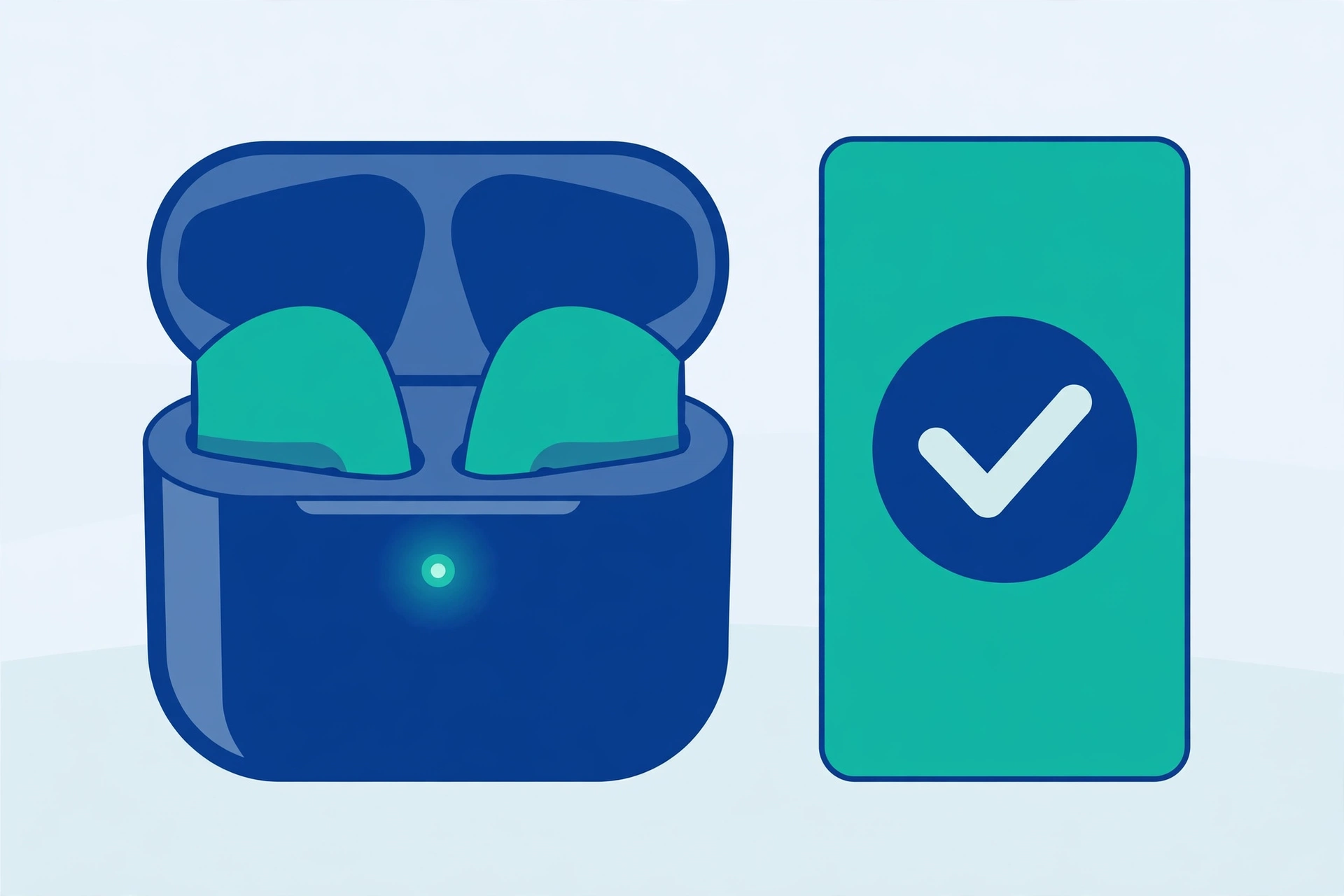
- Wait for “Connected.” Within a few seconds, the device name should move to a “Paired” or “Connected” section, and the blinking light on your accessory will usually turn steady. That is it. Play some music to test it.
From now on, whenever you turn on both your phone’s Bluetooth and the accessory, they will connect to each other automatically within seconds. You only go through pairing once.
How to disconnect or forget a device
Sometimes you want to stop using a device temporarily, or remove it completely. To disconnect for now, just turn off your phone’s Bluetooth, or turn the accessory off; the pairing stays saved for next time. To remove a device forever, open Settings, Bluetooth, tap the gear or arrow next to the device name, and tap Forget or Unpair. Use Forget when a device is lost, sold, or misbehaving: removing it and pairing fresh solves many stubborn connection problems.
When Bluetooth misbehaves: easy fixes
If a device will not connect, try these in order. One: turn Bluetooth off and on again on your phone. Two: restart both the phone and the accessory. Three: make sure the accessory is not still connected to another phone nearby, because most earbuds can only talk to one device at a time. Four: forget the device in settings and pair it again from scratch. Five: charge the accessory; a nearly empty battery causes random dropouts. These five steps fix the large majority of Bluetooth complaints.
Worked example: connecting earbuds from start to finish
Let us walk through a real first-time connection. You open your new earbuds case and take both buds out. A small light on the case starts blinking white: that is pairing mode, step one done. On your phone, you swipe down twice, long-press the Bluetooth icon, and the Bluetooth page opens with the switch on. After about five seconds, a new name appears under Available devices, something like the earbuds’ model name. You tap it, tap Pair on the popup, and the name moves up to Connected. You open your music app, press play, and the sound comes from the buds instead of the phone speaker. Total time: under a minute. Tomorrow, you simply open the case near your phone and they connect by themselves before you even sit down.
Two things to know about battery and safety
Battery: Bluetooth uses very little power compared to your screen, and modern versions use even less. Still, turning it off when you know you will not use it all day saves a little charge, and our guide on how to make your phone battery last longer shows where that saving fits in. Safety: only pair with devices you own or trust, and reject pairing requests you were not expecting. In crowded public places, it is wise to keep Bluetooth off until you need it, one of the habits in our basic online safety tips everyone should know.
You understand Bluetooth now
Bluetooth is simply gadgets whispering to each other across a room. Pair once, reconnect forever, and fix problems by restarting, forgetting, and pairing fresh. Your earbuds, speakers, car, and watch all work on this one simple idea.
Frequently Asked Questions
Does Bluetooth need internet or mobile data?
No. Bluetooth is a direct connection between two nearby devices and works completely offline, for example playing music stored on your phone through a speaker. Internet is only needed if the content itself comes from online, like streaming a song.
How far does Bluetooth reach?
For most phones and accessories, about 10 metres in open space. Walls, doors, and even your own body can shorten that distance, which is why music sometimes stutters when your phone is in a bag in another room. Staying in the same room gives the most reliable connection.
Why do my earbuds connect to my laptop instead of my phone?
Most earbuds remember several devices and connect to the last one they used, or the first one they find awake nearby. Turn off Bluetooth on the laptop, or disconnect the earbuds there, then open Bluetooth settings on your phone and tap the earbuds’ name to bring them back.
Can two phones send files to each other with Bluetooth?
Yes. Pair the two phones first, then use the Share option on a photo or file and choose Bluetooth, and accept the transfer on the other phone. It is slower than modern sharing tools, but it works anywhere, even with no internet and no Wi-Fi at all.
Pingback: How to Make Your Phone Battery Last Longer - TechTips by Hanzla
Pingback: What Is Wi-Fi? A Simple Explanation for Beginners - TechTips by Hanzla