Need to free up storage on your phone without losing photos? Few things are more annoying than seeing a “Storage Full” message when you are trying to capture a memory. But deleting precious photos and videos feels terrible, and it is almost never necessary. The good news is that you can reclaim gigabytes of space while keeping every single photo safe. The trick is to back up first, then remove only the things your phone does not really need. This guide walks you through it, step by step.

First, Back Up Before You Delete Anything
Please read this before touching the delete button: back up your photos and important files first. Every cleanup goes wrong for someone, a finger slips, the wrong album gets selected, and irreplaceable photos disappear. A backup turns a disaster into a minor inconvenience. Turn on automatic backup in Google Photos on Android, or iCloud Photos on iPhone, and wait until the app confirms everything is uploaded. You can follow our full walkthrough on how to back up your Android phone to Google Drive if you have never done it before. Check that you can open a few photos from another device or a browser. Only when you are sure the copies are safe should you start deleting anything from the phone itself.
Find Out What Is Eating Your Storage
Before fixing the problem, it helps to see it clearly. On most phones, the biggest storage users are photos and videos, followed by apps, especially games and social media, then cached data, downloaded files, and messaging media. Go to Settings, then Storage, and your phone will show a breakdown by category. If anything looks surprisingly large, that is your first target. If your phone is also running slowly, storage is often part of the reason, and the official Google Android help pages have extra advice for space problems. Work through the biggest categories one by one instead of deleting things at random.
Clean Up WhatsApp Media
WhatsApp is a silent storage killer. Every photo, video, voice note, and forwarded meme in your chats is saved on your phone, and group chats can quietly collect gigabytes of media you watched once and forgot. Here is how to clean it up safely:
- Open WhatsApp and go to Settings, then Storage and Data, then Manage Storage.
- You will see your chats listed by size. Open the biggest chat, usually a busy group.
- Tap “Larger than 5 MB” to find the heaviest videos first, and delete the ones you have already seen.
- Use Select to remove forwarded jokes, duplicate greetings, and old voice notes in bulk.
- Go back to Storage and Data and set Media Auto-Download to Wi-Fi only, or turn off photo and video downloads, so the problem grows more slowly.
Deleting media this way removes the files from your phone but keeps your text chats intact. Just remember the warning from earlier: if a photo in a chat matters to you, back it up before you delete it, because once it is gone from the chat and the phone, it may be gone for good.
Voice notes deserve a special mention. In busy groups and family chats, long voice messages pile up quietly, and a single chat can hold hundreds of them. In Manage Storage they are counted with the rest of the chat’s media, so clearing a chat’s large files usually removes them together. Also check WhatsApp’s “Channels” and status downloads if you use them; watched statuses are stored too, and they are among the easiest megabytes to win back because nobody needs them twice.
What Is Safe to Delete and What Is Not
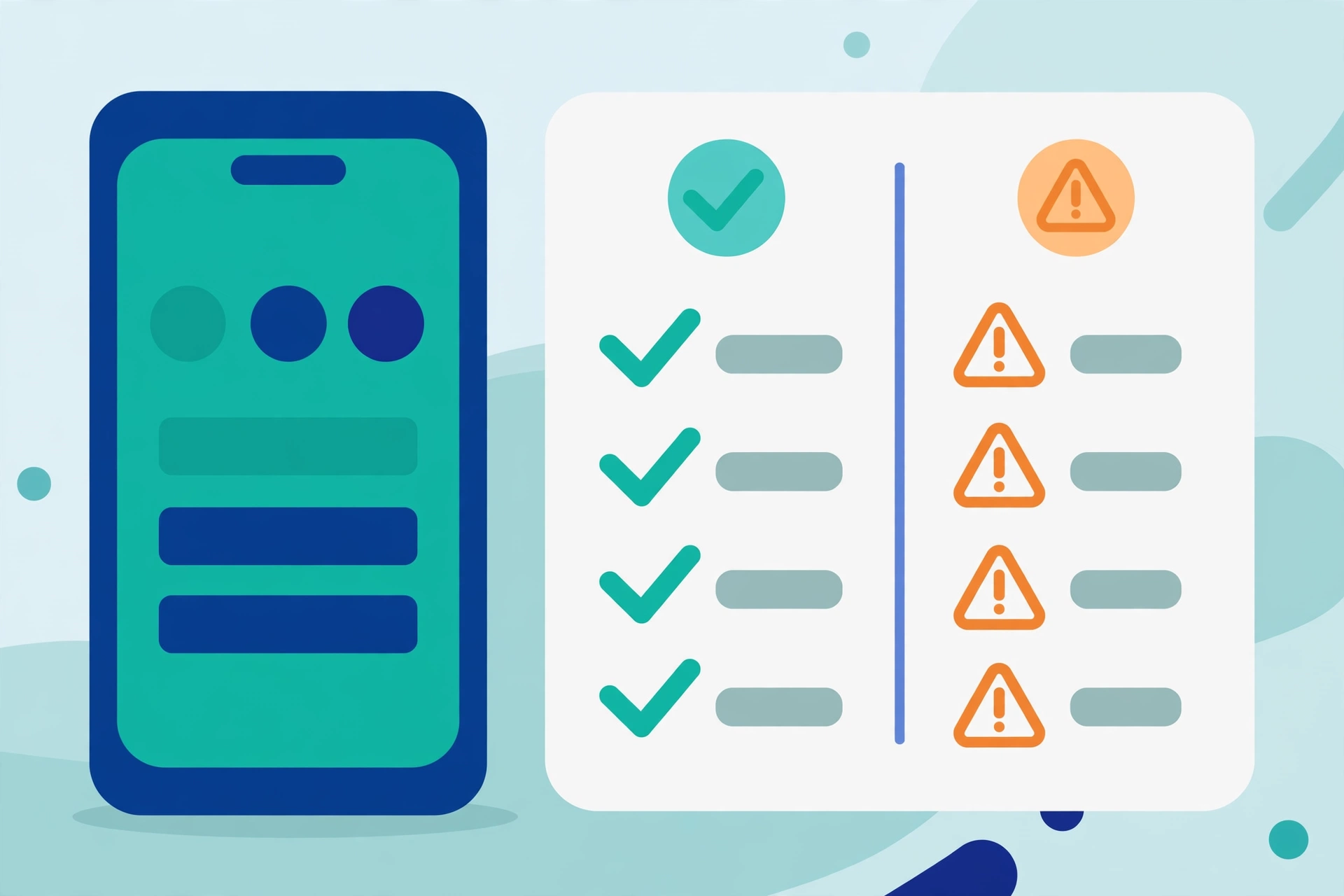
Most cleanup fear comes from not knowing what is safe to touch. Use this simple guide.
Safe to Delete
- App cache. These are temporary files apps rebuild automatically. Our guide on how to clear cache on Android to fix app problems shows the exact taps.
- Duplicate and blurry photos that are already backed up.
- Downloaded files you no longer need: old PDFs, installers, tickets, and memes.
- Offline videos and music inside streaming apps that you have finished watching.
- WhatsApp media you have already viewed, after backing up the keepers.
- Apps and games you have not opened in a month.
Be Careful With These
- “Other” or system files. Never delete files inside system folders by hand; let the phone manage them.
- App data (not cache). Clearing data, unlike cache, can log you out and erase settings or downloaded content inside the app.
- Photos not yet backed up. If the backup has not finished, deleting is permanent.
- Files inside app folders in a file manager if you do not recognize them. Some hold your chat backups or game progress.
Delete Duplicate and Blurry Photos
We all take five shots of the same moment and keep all five. Open your gallery and delete duplicates, blurry attempts, accidental screenshots, and photos of things you no longer need, like a parking spot reminder from three months ago. Many phones have a duplicates album that finds near-identical shots for you, and some gallery apps suggest blurry photos to remove. Fifteen focused minutes here often frees a surprising amount of space, and your photo library becomes much nicer to browse afterwards.
Clear App Caches
Apps store temporary cache files that grow month after month, and social media and browser apps are the worst offenders. On Android, go to Settings, then Apps, tap an app, choose Storage, and tap Clear Cache. This removes temporary files without deleting your login or personal data, and the app simply rebuilds what it needs. Repeat for your biggest apps, such as Facebook, Instagram, TikTok, and Chrome. On iPhone, you can offload unused apps from Settings, or clear cache inside individual apps where they offer it. Many people recover a gigabyte or more from this step alone.
Remove Unused Apps and Old Downloads
Games and forgotten apps take up serious space. Be honest with yourself: if you have not opened an app in a month, remove it. On iPhone, Offload App removes the app but keeps its data, so reinstalling later is painless. On Android, uninstall from Settings or the Play Store; for most apps, your account data returns when you sign in again. Then open your file manager and empty the Downloads folder of files you needed once and forgot. Check also for old voice recordings, offline maps from finished trips, and downloaded episodes. If storage pressure is also making the phone sluggish, our guide on simple ways to speed up a slow Android phone pairs well with this cleanup.
Move Big Files to an SD Card or Computer
If your Android phone supports an SD card, move photos, videos, and music to the card and set the camera app to save new photos there. You can also connect the phone to a computer with a USB cable, copy the largest videos across, confirm they play on the computer, and only then delete them from the phone. For files you rarely need but want to keep forever, an external hard drive or a cloud folder is a cheap, reliable home.

Let the Files App Find Large Files for You
Hunting through folders by hand is slow, so let an app do the searching. The free Files by Google app has a Clean tab that scans your phone and groups the junk for you: large files you may have forgotten, duplicate photos, old downloads, blurry shots, and memes saved from chats. It shows each suggestion with its size, and you approve every deletion before anything disappears, so nothing important is removed without your say-so. Many Samsung and other Android phones have a similar tool built in, usually called Device Care or Storage Cleaner, inside Settings. Running one of these tools after the manual steps above is an easy way to catch what you missed, and it often finds another gigabyte or two hiding in places most people never look, such as voice recording folders, screen recordings, and cached videos inside apps.
Build a Simple Monthly Cleanup Habit
Storage fills up slowly, so a small regular habit beats one big panic cleanup. Once a month, spend ten minutes on three things: confirm your photo backup is up to date, clear the cache of your three biggest apps, and glance at WhatsApp’s Manage Storage screen. That tiny routine keeps the “Storage Full” message away for good.
Frequently Asked Questions
Will clearing an app’s cache delete my photos or messages?
No. Cache is made of temporary files the app rebuilds on its own, so clearing it does not remove your photos, chats, or login. Just be careful not to tap “Clear data” or “Clear storage” instead, because that can reset the app completely.
How do I know my photos are safely backed up before deleting?
Open your backup app, such as Google Photos, and check that it says backup is complete with nothing waiting to upload. For extra safety, sign in to the same account on a computer or another phone and confirm you can open a few recent photos there.
Why does my storage fill up again so quickly?
Usually it is messaging media auto-downloading, apps growing their caches, and new videos. Turning off auto-download in WhatsApp, clearing big caches monthly, and keeping photo backup on will slow the refill dramatically.
Is it safe to delete everything in the Downloads folder?
Mostly yes, because Downloads holds files you saved deliberately, like PDFs, installers, and images. Skim through it first for anything important, such as a ticket or a contract, move keepers into a named folder or the cloud, then delete the rest.
Pingback: How to Take a Screenshot on Any Android Phone - TechTips by Hanzla