You have probably heard the term “the cloud” a hundred times. But what is cloud storage, really? Simply put, it is a way to save your files on the internet instead of only on your own device. When you save a file to the cloud, it is stored on powerful computers owned by companies like Google, Apple, or Microsoft. In this guide, cloud storage is explained in plain, simple language, with everyday examples and a simple comparison of the popular services, so no technical background is needed.
The Simple Definition
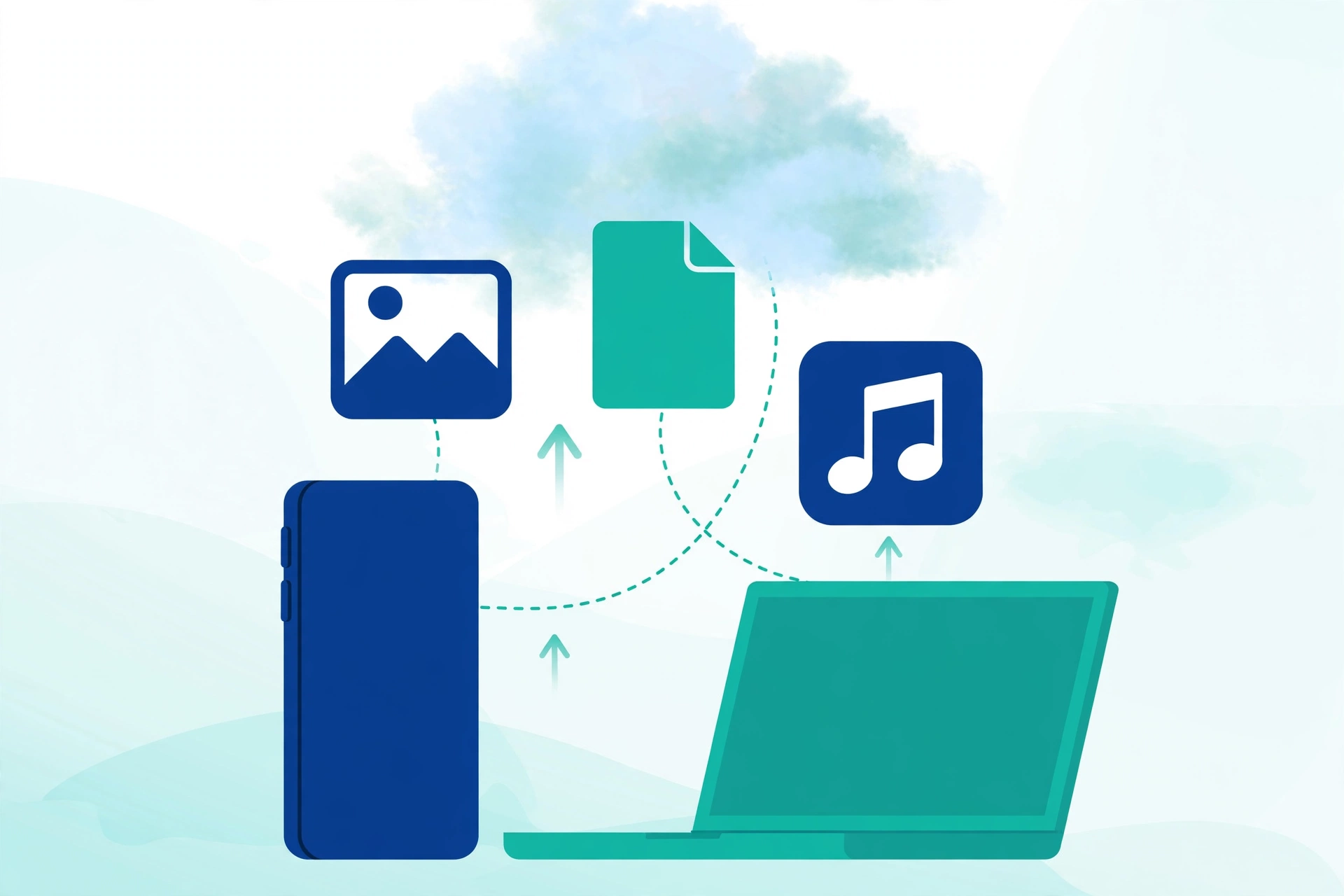
Cloud storage means saving your files, photos, videos, and documents on the internet instead of only on your own device. When you save a file to the cloud, it is stored on powerful computers in secure buildings called data centers. You can then open, download, or share those files from any device with an internet connection: your phone, your laptop, your tablet, or even a friend’s computer. The biggest benefit is simple. If your phone breaks, is lost, or is stolen, your files are still safe in the cloud, waiting for you to sign in somewhere else. The files do not live on your phone anymore; your phone is just a window to reach them.
How Does Cloud Storage Actually Work?
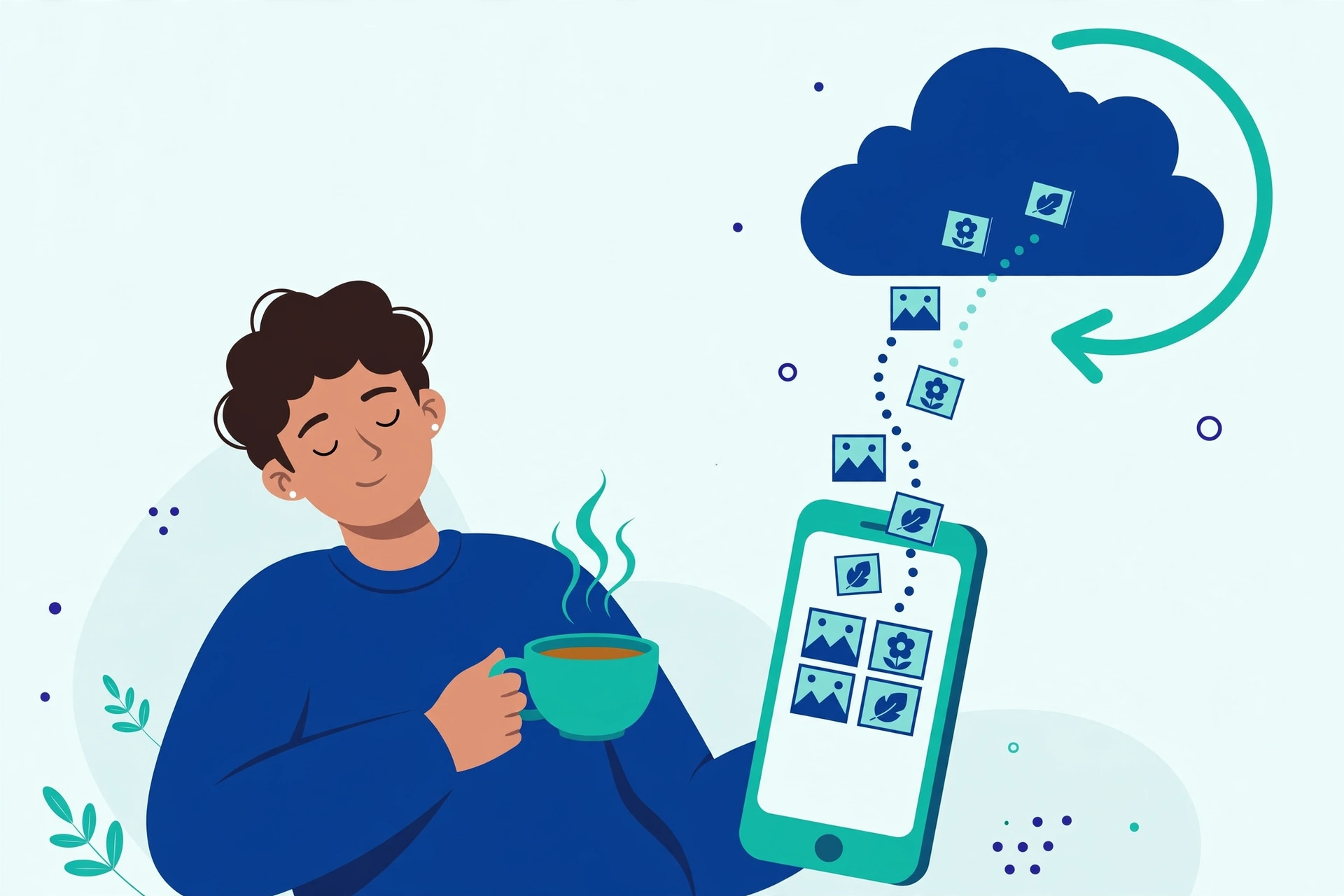
Think of it like a bank for your files. When you deposit money in a bank, you do not keep the cash at home; the bank stores it safely, and you can withdraw it from any branch or cash machine. Cloud storage works the same way. When you upload a photo, it travels over the internet to a data center, where it is saved on large hard drives. The company keeps more than one copy, in more than one place, so even if one computer fails, your file survives. When you want the file, you “withdraw” it by opening or downloading it through an app or website. All of this happens in seconds, and you never have to think about the details. One more word is worth knowing: syncing. When an app says it is syncing, it means it is comparing the copy on your device with the copy in the cloud and quietly updating whichever one is older, so both match. That is why a note you edit on your phone is already correct when you open it later on your laptop, with no cables and no effort from you. The connection between your phone and the cloud is your internet, which is why uploading works best on a steady connection; if you are unsure how connections like Wi-Fi actually work, our beginner guide on what Wi-Fi is and how it works explains it simply.
Everyday Examples of Cloud Storage
You may already use cloud storage without realizing it. Here are ordinary moments where it quietly does its job:
- Your phone photos appear on your laptop. You take a picture on your phone, and later it is simply there when you open your photo app on a computer. The cloud carried it across.
- A document follows you. You start writing a letter at the office, then open the same document at home and continue exactly where you stopped.
- Sharing a big video. Instead of attaching a huge video to an email, you upload it once and send a link. The other person downloads it from the cloud.
- A new phone that feels familiar. You sign in on a new phone and your contacts, photos, and settings come back, because they were stored in the cloud, not only on the old device.
- Freeing up space. Once photos are backed up, you can remove the copies from your phone and still see them anytime, which is the core trick in our guide on how to free up storage on your phone without losing photos.
Popular Cloud Storage Services Compared
Several big companies offer cloud storage, and most give you some space for free. This simple table compares the four names beginners meet most often.
| Service | Free Space | Best For |
|---|---|---|
| Google Drive | 15 GB | Android phones, Gmail users, and sharing documents |
| iCloud | 5 GB | iPhone, iPad, and Mac owners |
| OneDrive | 5 GB | Windows computers and Microsoft Office users |
| Dropbox | 2 GB | Simple file sharing across different devices |
They all work in a similar way: install the app, sign in, and your files start syncing. For most beginners, the best choice is simply the service that matches the phone or computer you already own. If you use Gmail and Android, Google Drive is the natural start, and Google’s own Google Drive help pages explain every feature in detail. There is no need to sign up for all four; one service, used properly, is enough.
What Can You Store in the Cloud?
Almost anything digital. Photos and videos are the most common, because backing up your camera roll means never losing memories to a broken phone. Documents such as school assignments, work files, and important PDFs are perfect for the cloud because you can open them anywhere. You can also store music, app backups, phone contacts, and settings. The most valuable use of all is backup: following the steps in our guide to back up your Android phone to Google Drive protects everything at once, automatically. Just remember that very sensitive documents deserve the extra protection described in the next section.
Is Cloud Storage Safe? A Privacy Guide
This is the question everyone asks, and the honest answer is: yes, for most purposes cloud storage is very safe, often safer than keeping files only on your own device. Big cloud companies use encryption, which scrambles your files so unauthorized people cannot read them, both while files travel over the internet and while they sit in the data center. Their buildings have serious physical security, and they keep backup copies of everything. Your phone, on the other hand, can be lost, stolen, or dropped in water tomorrow.
That said, no system is perfect, and your account is only as strong as your own habits. Follow these rules:
- Use a strong, unique password for your cloud account, and never reuse your email password.
- Turn on two-factor authentication, so a stolen password alone is not enough to get in.
- Be careful with sharing links. A link set to “anyone can view” really means anyone. Use it only for files you would not mind being public, and turn links off when you finish sharing.
- Think before storing very sensitive files, such as scans of ID documents or financial records. If you must store them, keep them in a folder with a clear name and rely on your account’s security settings, and never upload them from a computer you do not trust.
- Sign out on shared devices. If you open your cloud on someone else’s computer, sign out when you finish.
Free vs Paid Plans
Free plans are generous enough for many people. Fifteen gigabytes from Google holds thousands of photos, and you can check your current usage in the app’s settings. You will only outgrow the free space if you record lots of long videos or store many big files. Paid plans are usually affordable, often a small monthly amount for 100 GB or more. Before paying, try the free tier first, clean up duplicates and junk files, and then decide with real numbers in front of you. Many people pay for storage they do not actually need. One more practical point: free space is usually shared. On Google, for example, the same 15 GB covers Drive files, Gmail attachments, and photo backups together, so a mailbox full of huge old emails can quietly eat the space you expected to use for photos. A quick tidy of your largest emails can free cloud space without paying anything.
How to Get Started
Getting started takes about five minutes:
- If you have a Gmail account, you already have Google Drive. Install the Google Drive or Google Photos app and sign in.
- On iPhone, open Settings, tap your name, then iCloud, and turn on the items you want to back up.
- Start with photos, since they are both precious and the biggest space users.
- Connect to Wi-Fi and let the first backup finish completely; it can take a while if you have years of photos.
- From then on, new files sync automatically whenever you are online.
Frequently Asked Questions
Do I need internet to reach my cloud files?
Yes, normally you do, because the files live on the company’s computers, not on your device. Many apps let you mark important files for offline use, which saves a copy on your phone for times without a connection.
What happens if I stop paying for a cloud plan?
Your files are not deleted straight away. Usually you keep access to what you stored, but you cannot add new files until you drop back under the free limit or start paying again. Check the exact rules of your service, as they differ slightly.
Can the cloud company read my files?
Your files are encrypted while travelling and stored with strong protections, and companies state that staff do not browse customer files. Even so, the safest habit is to protect your account with a strong password and two-factor authentication, and to think before storing extremely sensitive documents.
Which free service should a beginner choose first?
Choose the one built for your device: Google Drive for Android and Gmail users, iCloud for iPhone owners, and OneDrive for Windows users. Matching your device makes setup automatic and avoids most problems.
Pingback: How to Back Up Your Android Phone to Google Drive - TechTips by Hanzla