It is 4 in the afternoon and your phone is already at 15 percent. You still have hours of the day left. Sound familiar? A dying battery is one of the most annoying phone problems, but the good news is that most battery drain comes from settings you can change in minutes. You do not need a new phone or a power bank. In this guide, I will show you exactly what eats your battery, the settings that make the biggest difference, and the daily habits that keep your phone alive from morning to night.
First, find out what is eating your battery
Before changing anything, look at the real data. Your phone already tracks exactly which apps and features use the most power. Go to Settings, then Battery. You will see a list showing battery usage by each app over the last 24 hours, with percentages.
This list often surprises people. That game you played for ten minutes might have used 20 percent. A social media app running in the background might be the biggest drain of all. Tap any app in the list to see details. If one app is using a crazy amount of battery, you can restrict it, use it less, or replace it with a lighter alternative. Knowledge first, fixes second.
Turn down the screen: your biggest battery saver
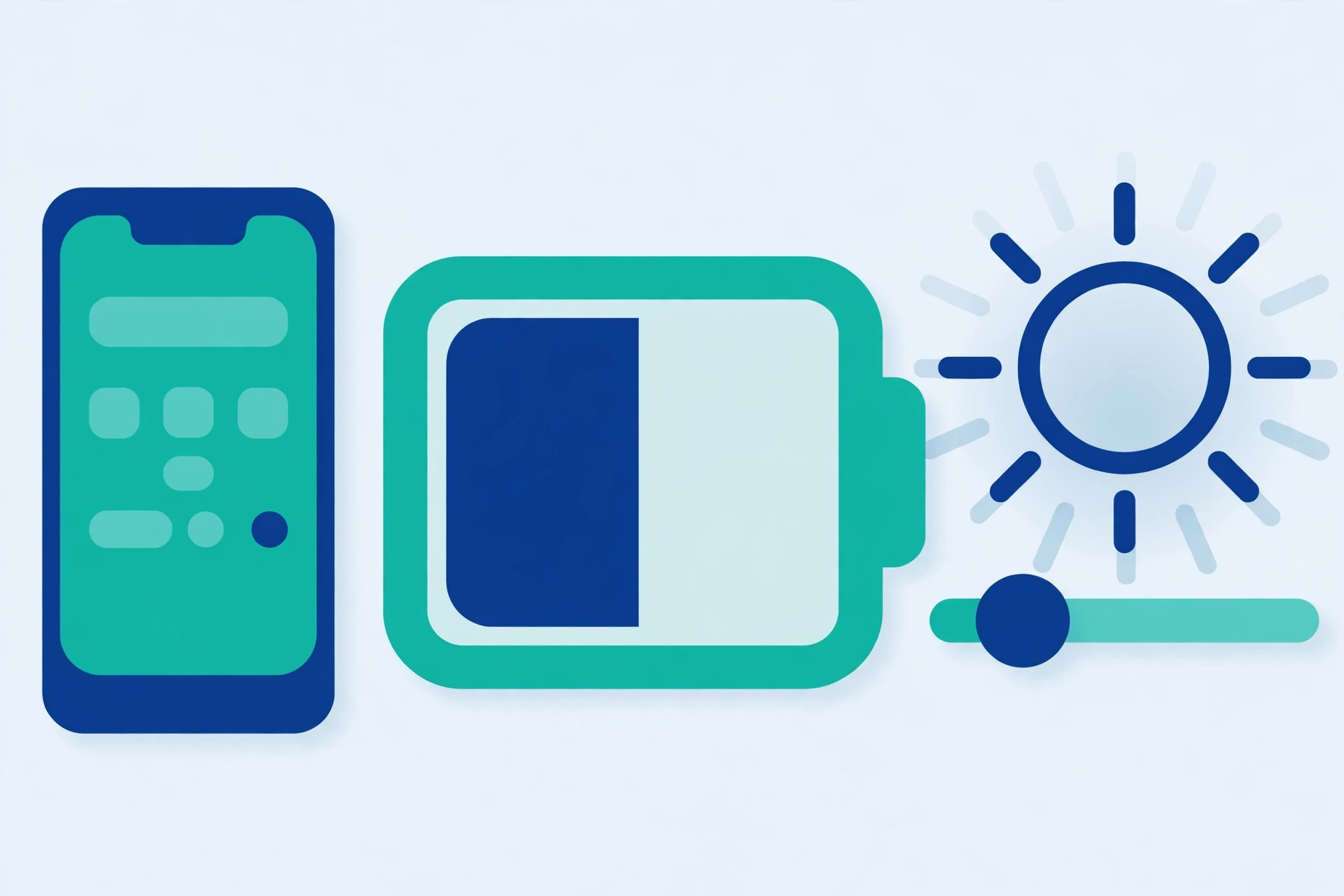
Your phone’s screen uses more battery than almost anything else. Two screen settings make a huge difference.
Lower the brightness. Swipe down from the top of the screen and drag the brightness slider down to a comfortable level. You do not need maximum brightness indoors. Even better, turn on Adaptive brightness (Settings, Display), which automatically adjusts the screen to your surroundings and saves power without you thinking about it.
Shorten the screen timeout. This is how long your screen stays on after you stop touching it. Go to Settings, Display, then Screen timeout, and set it to 30 seconds or 1 minute. Many phones default to 2 minutes or more, which wastes battery every time you put the phone down without locking it.
These two changes alone can add hours to your battery life.
Turn off connections you are not using
Your phone constantly searches for connections in the background, and each one costs battery.
- Wi-Fi: turn it off when you leave home, so your phone is not endlessly searching for networks while you are out
- Bluetooth: turn it off when you are not using earbuds or a speaker. Our beginner guide to what Bluetooth is and how to use it explains when you actually need it on
- Location (GPS): this is a big one. Many apps track your location all day. Go to Settings, Location, and turn it off when you do not need maps. You can also change individual apps from “Allow all the time” to “Allow only while using the app”
- Mobile data: if you are on Wi-Fi at home or office, you do not need mobile data on at the same time
The fastest way to toggle these is the Quick Settings panel: swipe down from the top of the screen and tap the icons. Make it a habit to glance at this panel once a day.
Stop apps from running wild in the background
Many apps keep working even when you are not using them: checking for messages, refreshing feeds, tracking your location. This background activity quietly drains your battery all day.
For apps that do not need to run in the background, restrict them. Go to Settings, Apps, tap the app, then Battery, and choose Restricted or turn off Allow background activity. Good candidates: games, shopping apps, and social media apps you only open occasionally. Do not restrict messaging apps like WhatsApp, or you will stop receiving messages on time. Be selective: restrict the apps you do not need instant notifications from.
Use battery saver mode smartly
Every Android phone has a built-in Battery Saver mode. When turned on, it limits background activity, reduces visual effects, and slows things down slightly to stretch your remaining battery. You can turn it on manually from Settings, Battery, Battery Saver, or from the Quick Settings panel. This is perfect for long days out when you know you cannot charge.
Even better, set it to turn on automatically. In the Battery Saver settings, enable Turn on automatically at 15 or 20 percent. This way your phone protects itself when it matters most, without you remembering to do anything.
Five daily habits that protect your battery
Settings help, but habits matter just as much.
Habit 1: Charge smartly, not fully. You do not need to charge to 100 percent every time. Keeping your battery between 20 and 80 percent most of the time is actually healthier for long-term battery life. Overnight charging to 100 is fine occasionally, just do not stress about it.
Habit 2: Avoid extreme heat. Heat is the number one enemy of batteries. Do not leave your phone in direct sunlight, on a car dashboard, or under your pillow while charging. If your phone feels hot during charging, take off its case for better airflow.
Habit 3: Close the heaviest apps when done. After playing a heavy game or using navigation, close the app fully instead of leaving it running. Swipe it away from the recent apps screen.
Habit 4: Update your apps and system. Developers constantly improve battery efficiency in updates. An old, buggy app version can drain far more power than the fixed new one, which is one of several reasons app updates matter and why you should install them promptly.
Habit 5: Restart your phone once a week. A weekly restart clears out stuck background processes that may be silently eating battery. It takes one minute and keeps everything running smoothly.
A 7-day battery rescue plan
If your battery life is really bad, do not try to fix everything in one sitting. Follow this simple week-long plan instead. Day 1: open Settings, Battery and note your top three draining apps. Day 2: lower brightness and set the screen timeout to 30 seconds. Day 3: restrict background activity for the worst app from Day 1. Day 4: set Battery Saver to switch on automatically at 20 percent. Day 5: update all your apps and your phone’s system software. Day 6: turn off Location for every app that does not truly need it. Day 7: check the Battery screen again and compare. Most people see a clear improvement by the end of the week, and because you changed one thing at a time, you know exactly which fixes worked for your phone.
If your phone also feels slow while the battery drains, the two problems often share the same causes, so work through our guide on simple ways to speed up a slow Android phone next. Google also publishes battery guidance for Android at support.google.com/android if you want to compare settings for your exact phone model.
What about battery health and replacement?
All phone batteries slowly wear out over about two to three years. If your phone is old and the battery drops from 50 percent to zero in minutes even after trying everything above, the battery itself may be worn out. Some phones show battery health under Settings, Battery. If it is badly degraded, visit an authorized service center for a battery replacement. It is much cheaper than a new phone and gives your device a second life.
Small changes, big difference
You do not need to do everything in this guide today. Start with the big three: lower your screen brightness, shorten the screen timeout, and check which apps are draining power in Battery settings. Those three alone usually fix the worst drain. Then build the habits: toggle off unused connections, restrict greedy background apps, and let Battery Saver guard your low percentages. Do this, and the days of your phone dying at 4 PM will be over.
Frequently Asked Questions
Is it bad to charge my phone overnight?
Charging overnight occasionally is fine, and modern phones stop drawing power once they are full. However, keeping a battery at 100 percent and warm for many hours every night does age it slightly faster. If you charge overnight daily, turning on your phone’s optimized or adaptive charging option is a smart middle ground.
Does closing all my apps from the recent apps screen save battery?
Not really. Android is designed to manage apps in the background by itself, and constantly swiping everything away can even use more power, because apps then reload completely. Only close heavy apps like games and navigation after use, and restrict true battery hogs in Settings instead.
Why does my battery drain fast even when I am not using my phone?
Background activity is the usual cause: apps syncing, weak mobile signal forcing the phone to work harder, or a stuck process. Check Settings, Battery after a few idle hours to see which app used power while the screen was off, then restrict that app or restart the phone.
Does 5G use more battery than 4G?
Yes, in many areas 5G uses noticeably more power, especially where the signal is weak and the phone keeps switching between networks. If battery life matters more than top speed, you can switch your phone to prefer 4G in the mobile network settings.
Pingback: What Is Bluetooth and How Do You Use It? - TechTips by Hanzla
Pingback: Why Is My Phone Charging Slowly? 8 Causes and Fixes - TechTips by Hanzla