Every day you hear the word: “Is there Wi-Fi here?” “Connect to the Wi-Fi.” “The Wi-Fi is down!” But what actually is Wi-Fi? If nobody has ever explained it to you in plain words, you are in the right place. In this guide, I will explain what Wi-Fi is, how it reaches your phone, how it is different from mobile data, and how to connect and fix common problems, all in simple language.
Wi-Fi, in one simple sentence
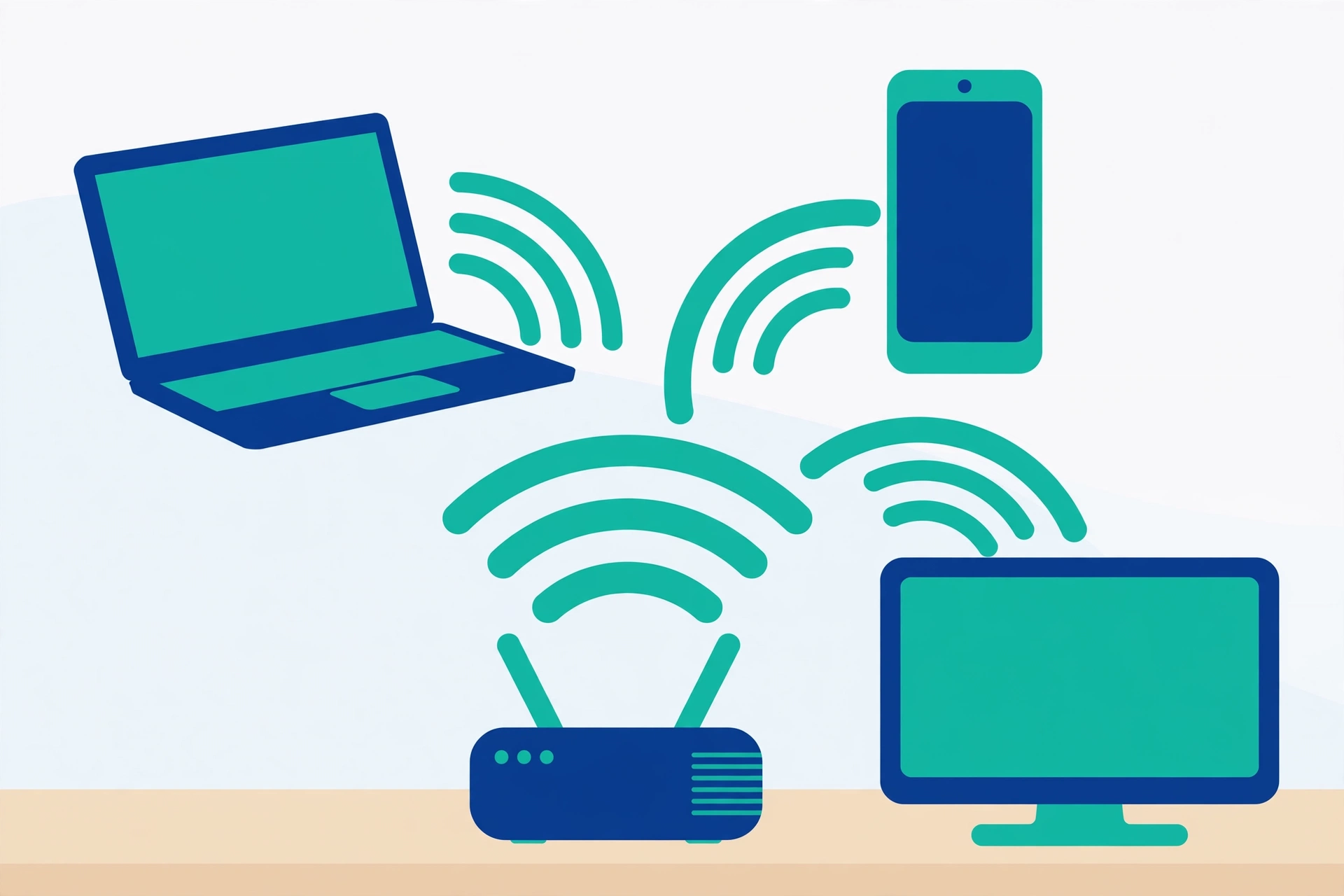
Wi-Fi is a wireless way for your phone, laptop, and other devices to connect to the internet through a small box in your home called a router, using invisible radio waves instead of cables.
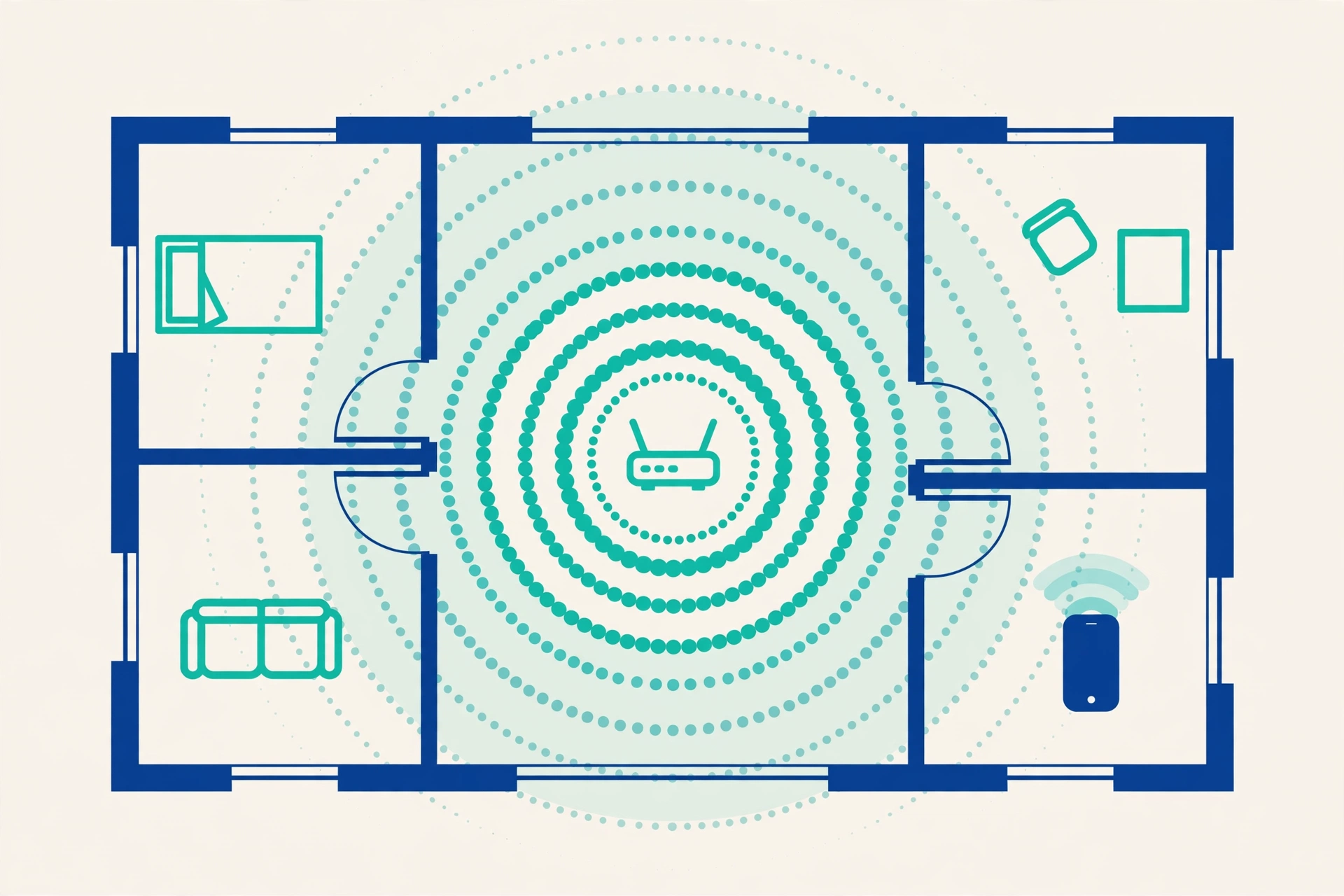
Think of it like a radio station in your house. The router broadcasts the internet around your home like a radio signal, and your phone “tunes in” to it. No wires run to your phone, yet you can browse, watch videos, and message friends, as long as you stay within the signal’s reach, usually inside your home and a little beyond its walls.
The small box that makes it all happen: your router
The router is the heart of your home Wi-Fi. It is a small box, usually with a few blinking lights and small antennas, provided by your internet company or bought from a shop. It does two jobs. First, it connects your home to the internet through a cable or fibre line that comes from outside. Second, it shares that internet wirelessly with every device in the house at the same time: phones, laptops, smart TVs, and tablets.
The router creates a Wi-Fi network with a name (you will see names like “HomeWiFi” or “PTCL-BB” on your phone) and protects it with a password, so only your family and guests you choose can use it. The Wi-Fi Alliance, the organization behind the Wi-Fi standard, explains the technology further at wi-fi.org.
Wi-Fi versus mobile data: what is the difference
Both connect your phone to the internet, but in different ways. Mobile data comes from your phone company’s towers, works almost everywhere outdoors, and comes out of your paid data package, so heavy use costs money. Wi-Fi comes from a nearby router, works only within that home or building, and usually has no per-gigabyte cost beyond the monthly internet bill.
That is why people prefer Wi-Fi at home: you can watch videos, download big files, and let your phone update itself without eating your mobile package. The two also work hand in hand with other wireless tools, as you can see in our guide to what Bluetooth is and how to use it, which explains the third wireless word beginners often mix up.
How to connect your phone to Wi-Fi: step by step
- Open Settings on your phone and tap Wi-Fi (on some phones it is under Network and internet).
- Turn the Wi-Fi switch on. Your phone will scan and show a list of nearby network names.
- Tap your network’s name. At home this is your own router’s name; at a cafe, ask the staff which name is theirs.
- Type the password carefully and tap Connect. Passwords are case-sensitive, so capital and small letters matter.
- Wait for “Connected” to appear under the name, and look for the Wi-Fi fan icon at the top of your screen. You are online.
Your phone remembers each network you join, so next time you come home it reconnects by itself within seconds.
Words you will see, explained simply
- SSID: just the technical name for your Wi-Fi network’s name, the one you tap in the list.
- Router: the box that creates your home Wi-Fi and connects it to the internet.
- Hotspot: when a phone shares its own mobile internet as a small Wi-Fi network for others. You can turn your phone into a hotspot from Settings.
- Bandwidth / speed: how much data your connection can carry at once. Videos and downloads need more; messaging needs very little.
- 2.4 GHz and 5 GHz: many routers offer two networks. 2.4 GHz reaches further through walls but is slower; 5 GHz is faster but covers a smaller area. Both are yours to use.
When Wi-Fi misbehaves: three easy fixes
Fix 1: Move closer and remove obstacles. Wi-Fi weakens through thick walls, metal doors, and distance. If videos keep buffering in one room, test the same phone next to the router. If it flies there, the problem is range, not your internet.
Fix 2: Restart the router properly. Turn the router off, wait a full 30 seconds, and turn it on again. Give it two to three minutes to fully wake up. This simple restart cures a surprising number of “the internet is broken” evenings.
Fix 3: Forget and reconnect. On your phone, tap your network name in Wi-Fi settings and choose Forget, then connect again and retype the password. This clears a corrupted saved connection, similar in spirit to clearing an app’s cache when an app misbehaves.
Why is my Wi-Fi slow in the evening? A quick detective guide
If your internet feels fast in the morning but crawls after dinner, work through this list before blaming your provider. Count the users: evenings are when the whole family streams, plays, and video-calls at once, and one big download can hog everything. Check the router’s age and place: a router stuffed inside a closed cupboard or behind a TV cannot spread its signal; raise it to an open shelf near the middle of the home. Look for neighbours: in flats and dense streets, dozens of routers fight on the same channels; switching your router’s channel in its settings, or simply using the 5 GHz network at short range, often helps. Test with a cable if you can: if a laptop plugged directly into the router is fast while Wi-Fi is slow, the line is fine and the wireless part needs attention. And remember that a healthy connection also protects your stored data, because automatic services like cloud storage only back up your photos when Wi-Fi is working.
A quick word about safety
Always protect your home Wi-Fi with a strong password, and never use an open network with no password for banking or shopping; strangers on the same network can sometimes snoop. Be careful with free public Wi-Fi in cafes and airports: it is fine for browsing, but avoid typing card numbers or important passwords there. These habits are part of our basic online safety tips everyone should know, and they cost nothing to follow.
You understand Wi-Fi now
Wi-Fi is simply your router broadcasting the internet through the air inside your home, and your phone tuning in. Connect once, stay within reach, restart the router when things act strange, and guard it with a good password. That is genuinely all most people ever need to know.
Frequently Asked Questions
Does Wi-Fi work without an internet connection?
Wi-Fi itself is just the wireless link between your device and the router. If the internet line to your home goes down, your phone may still show “Connected” to Wi-Fi, but pages will not load, because the router has nothing to share. Check whether other devices are also offline to confirm.
Why does my phone keep disconnecting from Wi-Fi?
Common causes are weak signal at the edge of the home, a router that needs restarting, or a saved network setting that has become corrupted. Try moving closer, restart the router, and if it continues, forget the network in Wi-Fi settings and connect again with the password.
Is 5 GHz Wi-Fi always better than 2.4 GHz?
Not always. 5 GHz is faster, so it is better for streaming and downloads in the same room as the router. 2.4 GHz travels further and passes through walls better, so it is often the smarter choice for far rooms, older devices, and simple browsing.
Can too many devices slow down my home Wi-Fi?
Yes. Every connected phone, TV, and laptop shares the same connection and the same router. One device downloading a huge file can slow everyone else. If evenings are slow, pause big downloads while others are streaming, and consider a faster internet package if many people share the home.
Pingback: What Is Cloud Storage? A Simple Explanation for Beginners - TechTips by Hanzla
Pingback: What Is Bluetooth and How Do You Use It? - TechTips by Hanzla