Imagine a thief gets hold of your password. It happens more often than you might think, through fake emails, leaked databases, and simple guessing. If a password is the only lock on your account, that thief can now walk straight in, read your private messages, and even change the password to lock you out. Two-factor authentication, usually shortened to 2FA, adds a second lock that the thief does not have. In this guide, you will learn what 2FA is and exactly how to turn it on.
Do not worry if the name sounds technical. Setup takes a few minutes, and you only do it once. After that, it adds about ten seconds when you sign in on a new device.
Two-factor authentication in simple words
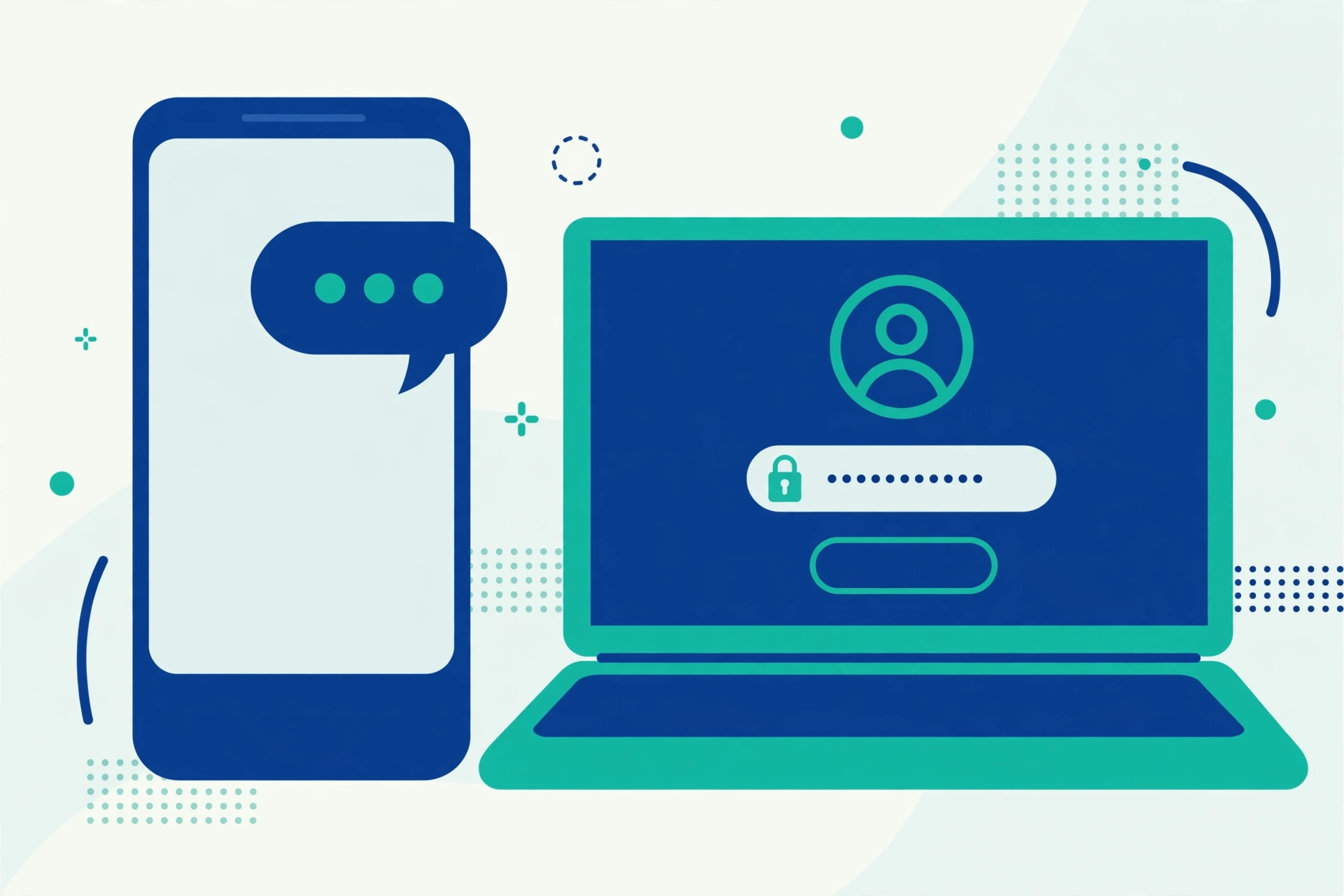
Think of your account like the front door of your house. Your password is the key. Two-factor authentication is like adding a guard at the door who asks for one more proof that you are really you. That second proof is usually a short code that only you can get, because it arrives on your phone.
The word “factor” simply means a type of proof. The first factor is something you know: your password. The second factor is something you have, like your phone, or something you are, like your fingerprint. A thief might steal what you know, but it is much harder for them to also hold your phone. That is why 2FA stops most break-ins, even when a password has leaked.
The second lock works best when the first lock is strong too. If your passwords are short or reused, learn how to create a strong password you can actually remember. A strong password plus 2FA is a very tough combination to beat.
The three kinds of second step
There are three common kinds, and most accounts let you pick one. Here they are, from the simplest to the strongest.
1. A code sent by text message
When you sign in, the website sends a short code, usually six numbers, to your phone by text message. You type the code in, and you are in. This is the easiest kind to set up because it needs no extra app, and almost every phone can receive a text.
2. An authenticator app
Apps such as Google Authenticator, Microsoft Authenticator, and Authy create a fresh code on your phone every 30 seconds. They work even without internet or a mobile signal, because the app and the website share a secret, so both produce the same code at the same time. You just open the app and type the code in before it changes.
3. A security key or your fingerprint
The strongest option is a small physical device called a security key, which you plug into your computer or tap against your phone when asked. Many phones and laptops also let you use your fingerprint or your face as the second step. Because the proof is a physical object or part of your own body, a thief far away cannot copy it.
Why text message codes are the weakest, but still worth using
Security experts rank text message codes last of the three kinds. Text messages can be intercepted, and criminals sometimes trick a mobile company into moving your number onto a SIM card they control, a trick called SIM swapping. If that happens, your codes go to the thief’s phone instead of yours. An authenticator app avoids this weakness, because its codes never travel through the phone network.
Even so, a text message code is far better than no second step. A thief who buys stolen passwords cannot read your text messages, so SMS 2FA still blocks most break-ins. The United States Cybersecurity and Infrastructure Security Agency gives the same advice in its simple guide to securing our world: turn on this protection everywhere it is offered, and prefer an authenticator app over text messages when you can. If an account offers only text codes, turn them on. If it offers an app, choose the app.
How to turn on 2FA on your Google account
Your Google account is the master key to your email, photos, and many other accounts, so protect it first. The process takes about three minutes.
- Open your browser, go to myaccount.google.com, and sign in if asked.
- Click Security in the menu on the left side of the page.
- Look for the section about how you sign in to Google, and click 2-Step Verification.
- Click Get started, and type your password again to prove it is you.
- Choose how you want to get your codes. Google may offer a prompt sent to your phone, or a code by text message.
- Follow the steps to test the code once, then click Turn on.
That is all. From now on, signing in on a new device will ask for your password and then a code or a tap on your phone. Your everyday devices can be remembered, so you will not be asked again and again.
How to turn it on for Facebook and WhatsApp
Other apps put this setting in slightly different places, but the path is always similar: settings, then security or privacy, then the two-factor option. On Facebook, open the menu, go to Settings and privacy, then Settings, then Password and security. Tap Use two-factor authentication, choose a text message or an authenticator app, and follow the short steps on the screen.
WhatsApp works a little differently and calls its version two-step verification. Open Settings, then Account, then Two-step verification, and create a six-digit PIN that you choose yourself. WhatsApp will ask for this PIN from time to time, and whenever you register your number on a new phone. Add your email address during setup, because WhatsApp uses it to help you if you ever forget the PIN.
Backup codes: your spare key
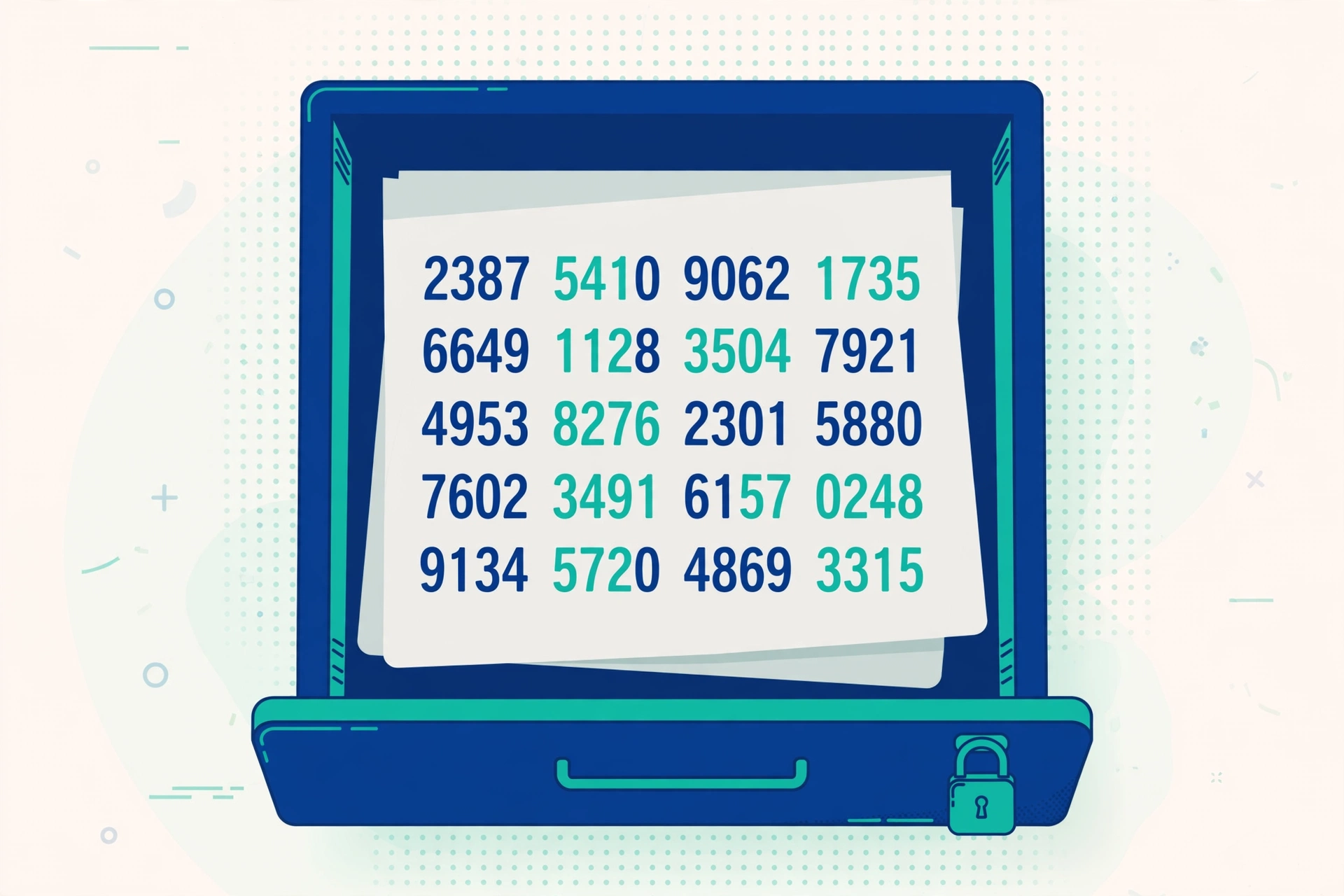
When you turn on 2FA, many services give you a set of backup codes, sometimes called recovery codes. Google, for example, gives you ten of them. Each code can be used once, like a spare key, to sign in when you cannot get a normal code.
Treat these codes like cash. The safest home for them is on paper, kept somewhere private such as a locked drawer. If you use a password manager, storing them there works too. Never keep them in a plain note on the same phone they are meant to protect, and never share them with anyone who asks. No real company will ever ask you for a backup code. Trying to get your codes out of you is one of the tricks covered in our guide to spotting and avoiding common online scams.
What to do if you lose your phone
Losing your phone is stressful, and it feels worse when your sign-in codes live on it. But you still have several options. First, use one of your backup codes to sign in on any other device. Second, if you are still signed in on a computer at home, open the security settings there and set up 2FA again on your new phone. Third, if your authenticator app has a cloud backup feature, as Authy and Microsoft Authenticator do, you can restore your codes on the new phone after proving who you are. If none of these work, every big service has an account recovery process, though it can take a few days while the company makes sure it is really you.
Common mistakes to avoid
- Never saving the backup codes. If your phone breaks and you have no backup codes, getting back into your accounts becomes slow and painful.
- Sharing a login code with a caller. If someone phones or messages you asking for a code “to verify your account”, it is a scam. Real companies never do this.
- Protecting one account but not your email. Your email can reset almost every other password you own, so it should be the first account you protect, not the last.
- Turning 2FA off because it feels annoying. It only asks on new devices or now and then, and that small pause is why it works.
Two-factor authentication is one of the core habits in our list of basic online safety tips everyone should know. Ten minutes of setup today can protect years of photos, messages, and memories.
Frequently Asked Questions
Does 2FA make my account impossible to hack?
No protection is perfect, but 2FA makes break-ins much, much harder. A thief would need your password and your phone at the same time. Combined with a strong, unique password, it stops nearly all common attacks, including the ones that use leaked password lists.
Will I need to enter a code every single time I sign in?
Usually not. Most services only ask when you sign in on a new device, a new browser, or after a long time. Many also offer a “remember this device” option, so on your own phone and computer you will rarely see the code screen at all.
What if the text message code never arrives?
First, wait a minute or two, because codes can be slow. Check that your phone has a signal, then try the resend option. If it still does not arrive, use one of your backup codes, or switch that account to an authenticator app, which does not depend on the mobile network.
Is an authenticator app difficult to set up?
It is easier than it looks. You install the app, then in the account’s security settings you choose the authenticator option and point your phone camera at a square QR code. The app adds the account itself, and from then on you just read the changing code whenever you are asked.