They are on restaurant tables, shop counters, electricity bills, advertisements, and even wedding invitations: those strange square patterns made of black and white boxes. You have probably wondered: what are these things, and what am I supposed to do with them? They are called QR codes, and they are incredibly useful once you know the trick. In this guide, I will explain in plain words what QR codes are, what they can do, and exactly how to scan one with your phone, no special app needed.
What is a QR code, in simple words
QR stands for Quick Response. A QR code is a type of barcode, like the ones on products in a shop, but square instead of striped, and it can hold much more information. In simple words: a QR code is a shortcut. Instead of typing a long website address, a Wi-Fi password, or payment details by hand, you just point your phone’s camera at the code, and your phone reads everything instantly.
Think of it like this: the QR code is a secret message written in a pattern of squares, and your phone’s camera knows how to read that pattern. One quick scan replaces minutes of typing, and there is no chance of a spelling mistake.
What can a QR code do?
A QR code can carry many types of information. When you scan one, your phone usually does one of these things:
- Opens a website: the most common use. Restaurant menus, product pages, advertisements, all open instantly in your browser.
- Connects you to Wi-Fi: scan the code and your phone joins the Wi-Fi network automatically, no typing the long password.
- Starts a payment: apps like JazzCash and Easypaisa use QR codes so you can pay a shop by scanning instead of entering numbers.
- Adds a contact: business cards with QR codes save the person’s name and number directly to your phone.
- Sends a message: some codes open WhatsApp or SMS with a pre-written message, ready to send.
- Downloads an app: scanning takes you straight to the app’s Play Store page.
Once you start noticing them, you will see QR codes are quietly doing small jobs everywhere.
How to scan a QR code: the easiest method (no app needed)
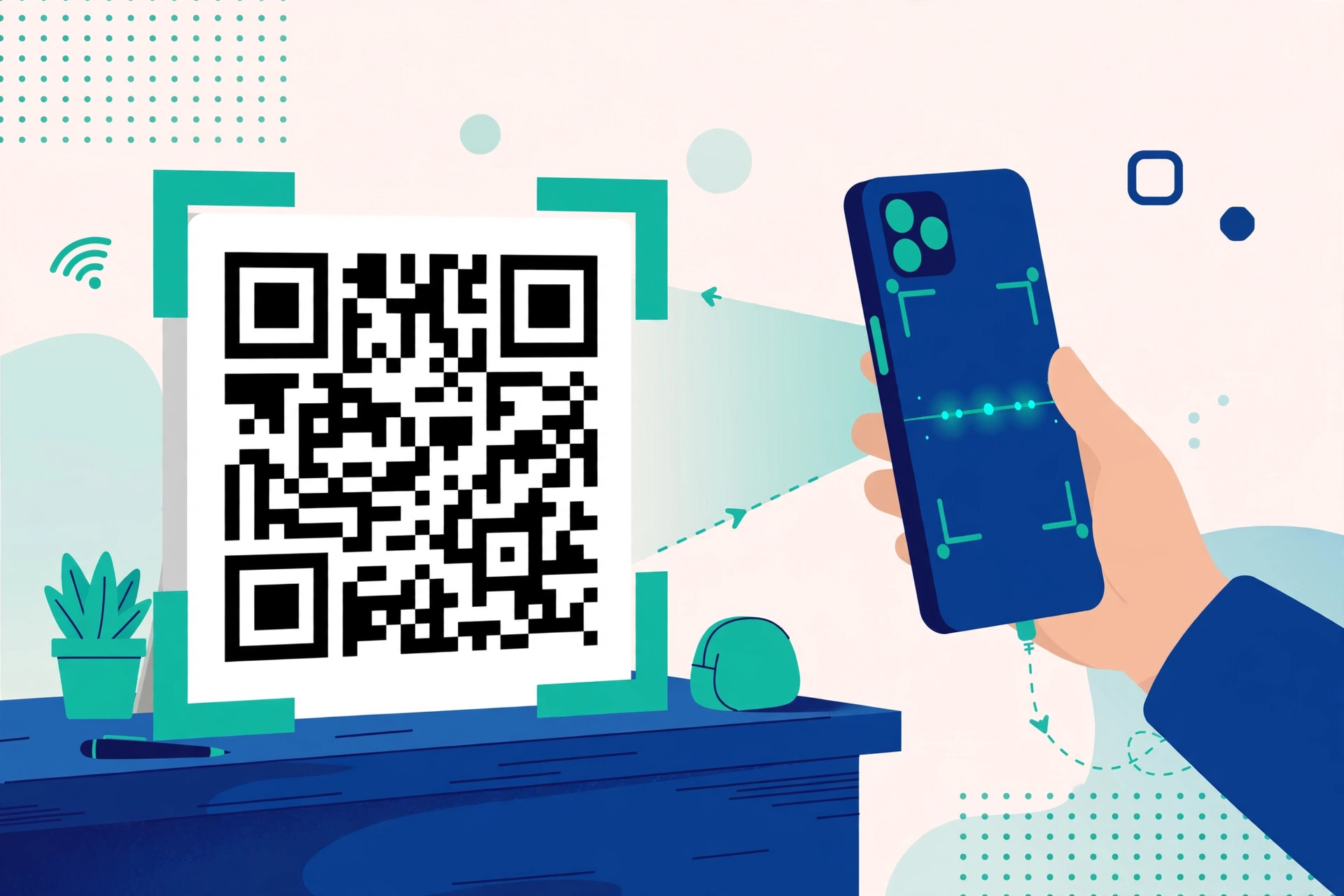
Here is the good news most beginners do not know: you do not need to download any QR scanner app. Your phone’s normal camera can already do it.
- Open your Camera app. Just the regular camera you use for photos.
- Point it at the QR code. Hold your phone steady, about 15 to 25 centimetres away, so the whole square pattern is visible on your screen. You do not need to press the shutter button or take a photo.
- Wait for the notification. Within one or two seconds, your phone will recognize the code. A small notification, link, or popup will appear on the screen, showing what the code contains.
- Tap the notification to open the website, join the Wi-Fi, or complete whatever action the code offers.
That is the whole process: point, wait a second, tap. If nothing happens, move your phone slightly closer or further, make sure the code is well lit and not blurry, and hold steady.
What if your camera does not scan it?
On most phones from the last five years, the built-in camera scans QR codes automatically. But on some older phones, or if it was turned off, you may need to enable it.
- Check the camera settings: Open your Camera app, tap the settings gear icon, and look for an option like “Scan QR codes.” Make sure it is turned on.
- Use Google Lens: Open the Google app, tap the camera (Lens) icon, point at the QR code, and tap the shutter. Lens will read it and show the link.
- Try your browser: In the Google Chrome app, tap the search bar, then tap the Lens camera icon on the right. Point at the code the same way.
If your phone is very old and none of these work, only then consider a QR scanner app from the Play Store, and pick one with good reviews and few ads. For most people, the built-in camera is all you need.
How to stay safe with QR codes
QR codes are convenient, but criminals have learned to abuse them. A QR code can hide any website address, including a fake or malicious one. Since you cannot read the code with your eyes, you must be careful, and these habits pair well with our basic online safety tips everyone should know.
Rule 1: Check where the link goes before tapping. When your phone shows the scanned link, read it carefully before tapping. Does the address look legitimate? Is it spelled correctly? If a QR code on a restaurant table wants to open some strange address you do not recognize, do not tap it. If you are unsure what to look for, our guide on how to tell if a website is safe teaches you the exact checks.
Rule 2: Beware of stickers placed over real codes. Criminals sometimes stick their own fake QR code on top of a genuine one, on parking meters, shop counters, or restaurant tables. If a QR code looks like a sticker slapped over another code, or the area around it looks tampered with, do not scan it. Ask the staff instead.
Rule 3: Never enter sensitive details after scanning an unknown code. If scanning a random QR code takes you to a page asking for your card number, bank password, or SMS code, close it immediately. Legitimate payments through QR, like JazzCash or Easypaisa, happen inside the official app, never on a random web page asking for your PIN. This trick is one of several covered in our guide to spotting and avoiding common online scams.
Rule 4: Do not scan codes from spam messages. If you receive a QR code in a suspicious email, SMS, or WhatsApp forward promising a prize or threatening a penalty, delete it. Real companies do not ask customers to scan codes from random messages. The US Federal Trade Commission has warned about exactly this trick at consumer.ftc.gov.
How to create your own QR code
Making a QR code is free and takes one minute. Search online for a “QR code generator,” open a well-known one, paste your website link, your Wi-Fi details, or your WhatsApp number, and download the image. Print it for your shop counter, add it to your business card, or share it in a group chat so people can reach you without typing. Always test your own code with your phone before printing it anywhere.
Five clever everyday uses for QR codes at home
Once you can make your own codes, small daily annoyances disappear. One: print your home Wi-Fi code and stick it on the fridge, so guests connect themselves instead of asking for the password. Two: put a code on your luggage or your child’s school bag that opens your contact details if it gets lost. Three: shopkeepers can display one payment code instead of reading out account numbers all day. Four: teachers and tutors can share class notes or homework links as one code on the board. Five: families can link a code to a shared photo album after weddings and trips, so everyone finds the pictures in one scan. Each use replaces typing, spelling mistakes, and confusion with a single point-and-tap.
One scan replaces a thousand keystrokes
QR codes look mysterious, but they are simply shortcuts your camera can read. You now know how to scan one with the camera you already have, what to do when scanning fails, how to make your own, and, most importantly, how to scan safely. Point, check the link, then tap: that is all there is to it.
Frequently Asked Questions
Do I need internet to scan a QR code?
Scanning itself works without internet, because your camera only reads the pattern. But if the code contains a website link, you will need internet to open that page. Codes that store plain text, like Wi-Fi passwords, can work fully offline.
Can a QR code install a virus on my phone by itself?
No. A QR code is only information, usually a link. It cannot install anything on its own. The danger is the page the link opens: if that page asks you to download an app file or type in passwords and codes, close it. Scan, check, and only then decide.
Why does my camera show the code but nothing happens?
Usually the scanning feature is turned off, the code is damaged or too small, or the light is poor. Turn on “Scan QR codes” in your camera settings, move to better light, hold the phone steady at a slight distance, or use Google Lens as a backup method.
Are QR codes on bills and bank letters safe to scan?
Codes printed on genuine bills and official letters are normally safe and simply open the payment or information page. Still, glance at the web address before entering any details, and make payments inside the official app whenever possible rather than on a web page that opened from a scan.