You need a form for a job application. You want a new ringtone. Someone sends you a “funny video” file. Every day, we download files on our phones without thinking twice. But every download is also a small risk, because viruses and malware often hide inside files that look harmless. Do not worry, you do not need to stop downloading. You just need a few simple habits that keep you safe. In this guide, I will explain what the dangers are in plain words, and give you clear rules for downloading safely on your Android phone.
What can go wrong: viruses and malware in simple words
Malware is a general word for any software made to harm you or steal from you. A virus is one type of malware. On phones, malware usually wants one of three things: to steal your personal information (passwords, bank details, photos), to show you endless ads that earn money for criminals, or to lock your phone and demand payment to unlock it.
Malware usually arrives disguised as something you want: a free game, a movie, a “system cleaner,” a document, or an update for a popular app. You tap it thinking it is harmless, and the moment you open or install it, the trouble starts.
The good news: on Android, malware cannot infect your phone just by sitting in your downloads. It needs you to open or install it. That means you are always in control. If you learn which files to trust and which to avoid, you stay safe.
Rule 1: download apps only from the Play Store
This is the single most important rule. The Google Play Store checks apps for malware before allowing them. It is not perfect, but it is enormously safer than anywhere else. Never download apps from random websites, WhatsApp forwards, or links in text messages, especially files ending in .apk. These are the number one source of phone malware. That “free premium app” or “cracked game” from a strange site is very often a trap.
If an app is not on the Play Store, ask yourself why. Genuine popular apps are always there. The rare exceptions, like apps from your bank or office, should only be installed from the company’s own official website, never from a forwarded link. This rule is part of a bigger pattern of habits covered in our basic online safety tips everyone should know.
Rule 2: check before you tap a download link
Before downloading anything from a website, pause for ten seconds and check these things:
- Is the website itself trustworthy? Use the safety checks you know: https and padlock, correct spelling of the address, professional look, real contact details. Do not download files from sites that already look suspicious. Our guide on how to tell if a website is safe walks you through these checks one by one.
- Does the download button look real? Shady sites surround the real download link with five big fake “DOWNLOAD” buttons that are actually ads. The real button is usually smaller and plainer. If clicking a download button opens three popups instead of starting a download, leave the site.
- Read the file name and size. A movie file that is only 2 MB is not a movie, it is a trap. A document called “invoice.pdf.exe” is not a PDF, it is a program pretending to be one. If the name or size makes no sense, do not open it.
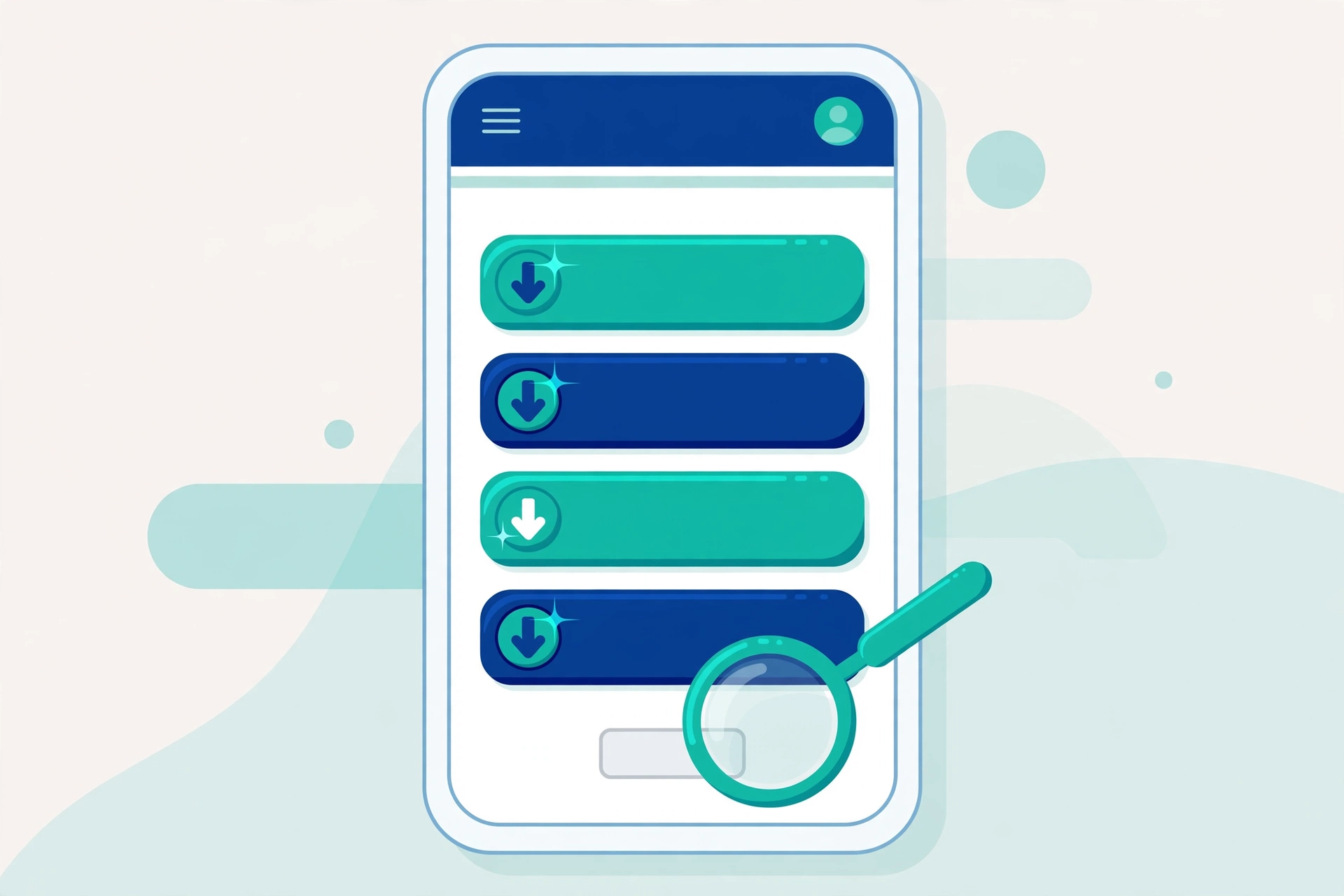
Rule 3: be extra careful with file types that can harm you
On Android, the most dangerous file type is .apk, because it can install apps, and installing is what gives malware its power. Treat every .apk file as guilty until proven innocent. Other file types deserve caution too:
- .zip and .rar (compressed files): the danger hides inside, so only open them if you trust the source completely.
- Office documents (.doc, .xls, .pdf) from strangers: these can contain harmful macros or links, especially email attachments you were not expecting.
- Files with double extensions like “photo.jpg.exe” or “song.mp3.apk”: the real type is the last extension. Anything hiding its true type is suspicious.
Safe and boring file types like .jpg photos, .mp3 music, and .mp4 videos from trusted sources are very low risk, because they cannot install anything by themselves.
Rule 4: never open unexpected attachments
Did you get an email or WhatsApp message with an attachment you were not expecting, even from someone you know? Stop. Think. Criminals constantly hijack real accounts and send malware to the victim’s contacts. “Look at this photo!” from a friend’s hacked account, or “Your parcel details” from a fake courier, are classic tricks; they belong to the same family of tricks in our guide to spotting and avoiding common online scams.
Before opening, ask yourself: was I expecting this file? Does the message sound like how this person normally writes? When in doubt, message the person separately, not by replying to the suspicious message, and ask: “Did you just send me a file?” Nine times out of ten, they will say no, and you will have dodged a bullet.
Rule 5: keep Play Protect turned on
Your Android phone already has a free security guard built in, called Google Play Protect. It scans your apps regularly and warns you about harmful ones, even checking apps you install from outside the Play Store. Make sure it is on: open the Play Store, tap your profile picture, tap Play Protect, then tap the gear icon and make sure both scanning options are turned on. Then tap Scan to run a check right now. Play Protect is not a replacement for careful habits, but it is an excellent safety net, and Google documents how it works in Chrome and Android help at support.google.com/chrome and the Play Protect settings on your phone.
Rule 6: keep your phone updated
Many infections succeed only because a phone is running old software with known holes in it. Keep your apps and your Android system updated, and those holes stay closed. Turn on automatic updates in the Play Store so this happens quietly in the background, and install system updates when your phone offers them.
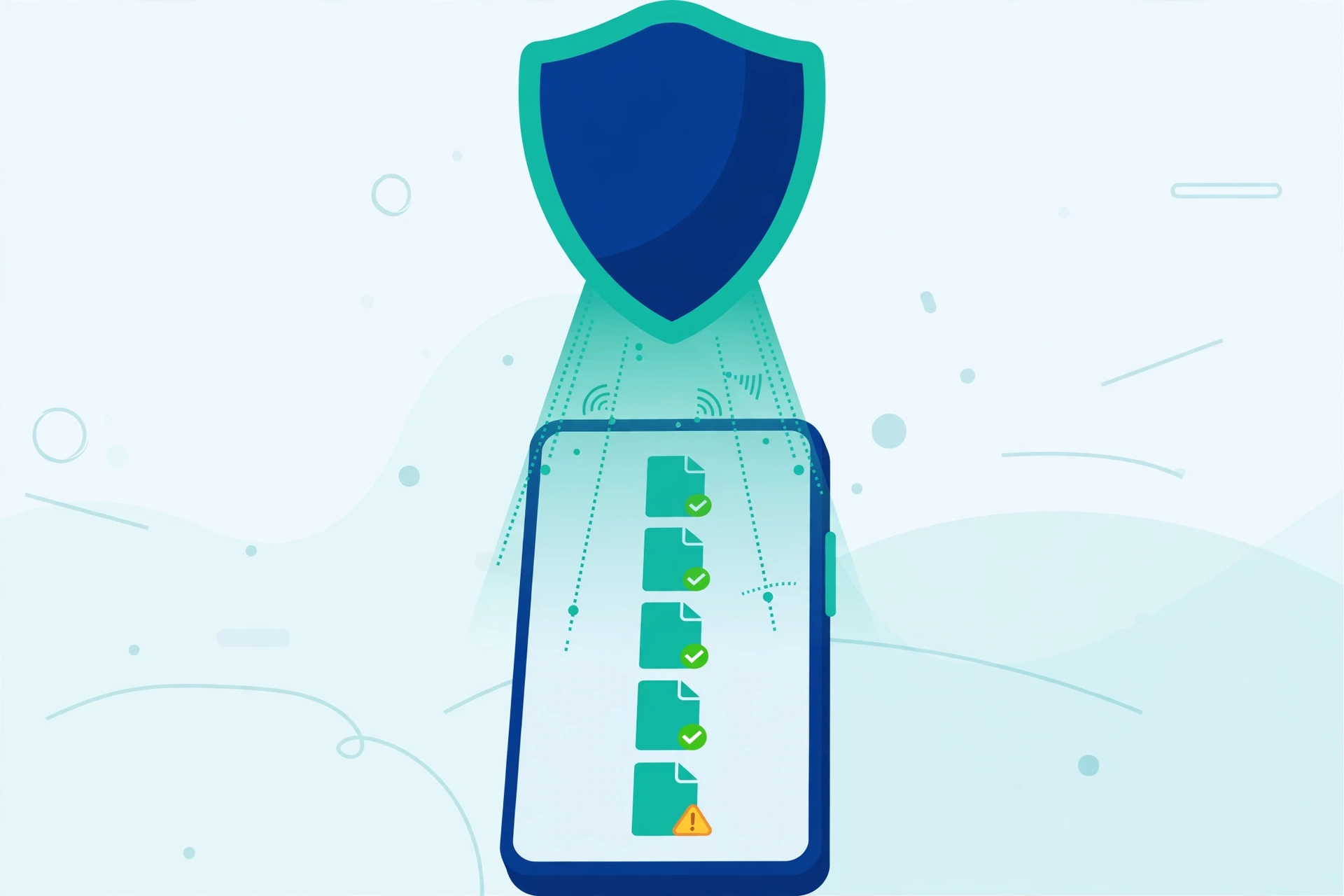
A 10-second safety check before opening any download
When a file finishes downloading, run this quick routine before you tap it. One: do I know exactly who sent this or where it came from? Two: is it the file type I expected, with a normal name and a believable size? Three: was I actually expecting it right now? Four: if it is an app file, did it come from the Play Store? If any answer is no, delete the file and ask the sender through a different channel. Ten seconds of checking is far cheaper than cleaning up an infected phone, and after a week this check becomes automatic.
What to do if you think you downloaded something bad
Act calmly and quickly. If you installed a suspicious app, uninstall it immediately from Settings, Apps. If you only downloaded a file but never opened it, simply delete it from your Downloads folder; it cannot harm you sitting there. Run a Play Protect scan. Then watch for strange behaviour over the next days: new apps you did not install, endless pop-up ads, or a battery that suddenly drains. If any of these appear, back up your photos and important files, then consider a factory reset, which removes almost all phone malware.
Safe downloading in one sentence
Download apps only from the Play Store, pause ten seconds before opening anything else, and let Play Protect stand guard: follow those three habits and downloading becomes a safe, everyday activity again.
Frequently Asked Questions
Is it safe to download PDF files?
PDFs from sources you trust, like your office, school, or a company’s official website, are generally safe. A PDF from a stranger, an unexpected email attachment, or a suspicious website is different: it can contain harmful links. Check the sender and the file name first, and never type passwords into a document that asks for them.
What does it mean when my phone warns me about installing an APK?
That warning is Android protecting you. Installing an APK means installing an app from outside the Play Store, which skips Google’s safety checks. Unless the file came from a company’s official website and you fully understand why you need it, tap Cancel and find the app on the Play Store instead.
Can a virus spread through a WhatsApp video or photo?
Ordinary photos and videos are very low risk because they cannot install anything by themselves. The real danger on WhatsApp is forwarded app files (.apk), strange documents, and links that lead to fake download pages. Enjoy shared media, but treat forwarded files and links with suspicion.
My phone shows pop-up ads everywhere after a download. What happened?
You probably installed an adware app, often a “free” game, cleaner, or wallpaper app from outside the Play Store. Uninstall the most recent apps one by one, starting with the last one you added, until the ads stop. Then run a Play Protect scan to confirm your phone is clean.
Pingback: 5 Free AI Tools That Make Everyday Tasks Easier - TechTips by Hanzla