Imagine this. You drop your phone in a sink full of water, or you leave it in a taxi, or it simply refuses to turn on one morning. In one moment, your photos, your contacts, your messages, and your apps could all be gone. It is a scary thought, and it happens to people every single day. The good news is that you can protect yourself in about ten minutes, and it costs nothing. Your Android phone can automatically save a copy of your important data to your Google account through a free service connected to Google Drive. This copy is called a backup. If anything ever happens to your phone, you can bring everything back on a new phone in just a few minutes. In this guide, I will show you exactly how to back up your Android phone to Google Drive, step by step, with no technical knowledge needed.
What exactly gets backed up
Before we start, it helps to know what a Google backup actually saves. When you turn on backup, Google saves a copy of:
- The apps installed on your phone, plus data from many of those apps, so you do not have to set everything up again
- Your contacts, so no phone number is ever lost
- Your call history
- Your text messages (SMS)
- Your device settings, such as your saved Wi-Fi passwords, your wallpaper, and your display settings
There is one important thing you should know. Your photos and videos are NOT included in this backup by default. They need a separate step, which I will explain below. Your WhatsApp chats also need their own backup inside the WhatsApp app. Do not worry, I will walk you through both of those as well, so by the end of this guide everything important on your phone will be safe. If the whole idea of storing copies online is new to you, our plain-words explanation of what cloud storage is will make the rest of this guide even clearer.
Before you start, check these three things
You need a Google account on your phone. Almost every Android phone already has one signed in, because you need it for the Play Store. If you are not sure, open Settings, tap Google, and check that you see your email address at the top.
Connect to Wi-Fi. Backups can be large, sometimes several gigabytes, so it is best to do the first backup on Wi-Fi instead of mobile data. This keeps it fast and saves your mobile data package.
Make sure you have free storage. Every Google account comes with 15 GB of free storage, shared between Google Drive, Gmail, and Google Photos. For most people this is enough for a full phone backup. If your storage is nearly full, this is a good moment for freeing up storage on your phone without losing photos, and for deleting large old email attachments too.
Step by step: turn on backup
Follow these steps carefully. The menu names can look slightly different on Samsung, Xiaomi, Oppo, and other brands, but the path is almost always the same.
- Open Settings. Find the Settings app on your phone. It looks like a small gear icon. Tap it.
- Tap Google. Scroll down in Settings until you see Google, then tap it. This opens your Google account settings on the phone.
- Tap Backup. Inside the Google menu, look for an option called Backup. On some phones it may say “Backup by Google One.” Tap it.
- Turn on the backup switch. You will see a toggle at the top, something like “Back up to Google Drive” or “Backup by Google One.” If it is off, tap it to turn it on. Your phone may ask you to confirm; just tap Turn on or OK.
- Choose what to back up. Below the main switch, you may see a list of items such as Photos and videos, Device data, and more. Make sure the important ones are switched on. Do not worry about photos here; we will handle those separately in the next section.
- Tap Back up now. This starts your first backup immediately. Your phone will show a progress message. Leave your phone connected to Wi-Fi and let it finish. The first backup takes the longest, usually between ten minutes and one hour depending on how much data you have. Later backups happen automatically and are much faster, because only new or changed data is saved.
- Confirm it worked. When the backup finishes, the screen will show the date and time of the last backup, something like “Last backup: today at 10:30 AM.” If you see a recent time there, congratulations, your phone is now protected.
From now on, your phone will back itself up automatically, usually at night while it is charging and connected to Wi-Fi. You never have to think about it again. Google explains the same process in its Drive help pages at support.google.com/drive.
Do not forget your photos: back them up with Google Photos
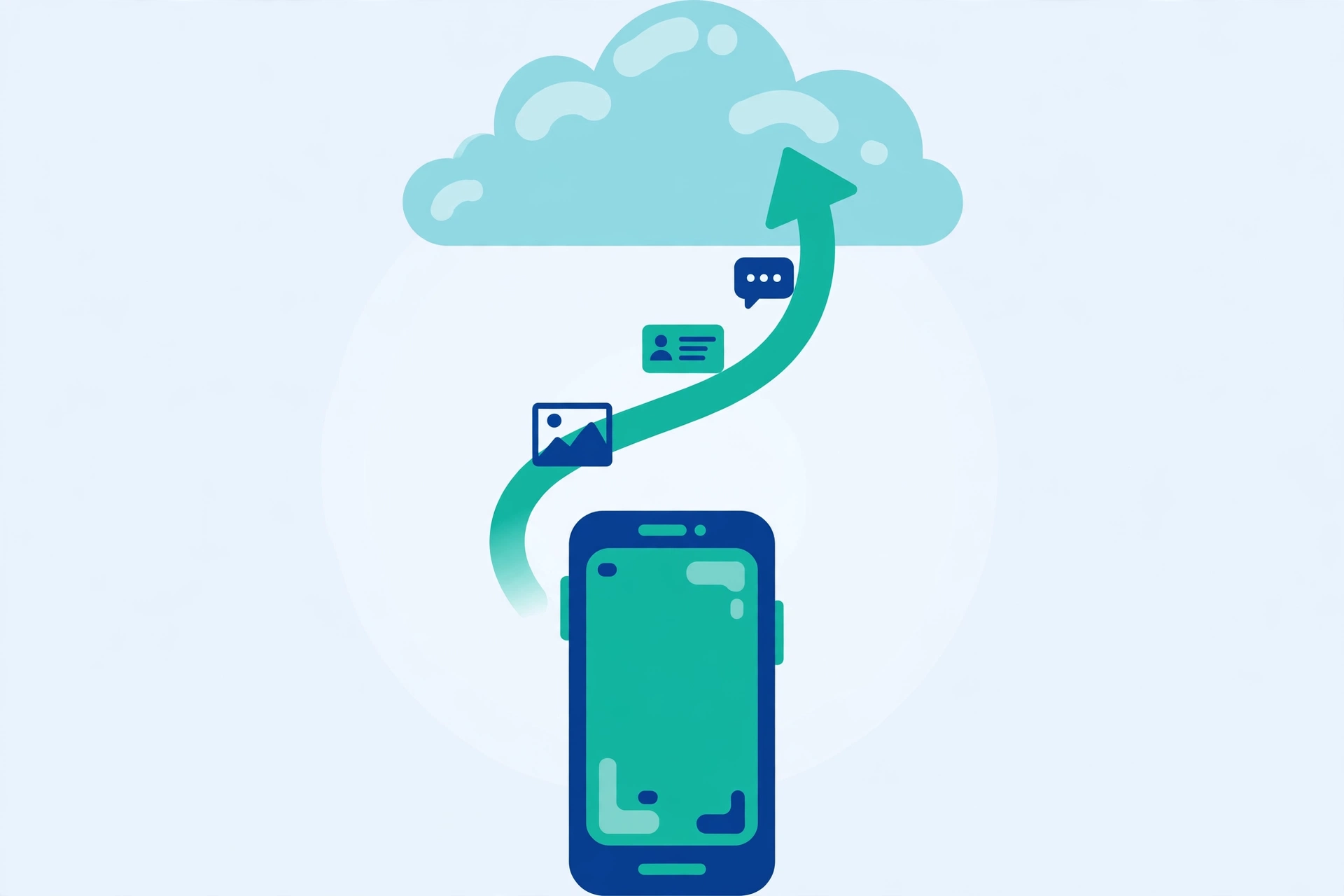
As mentioned earlier, photos and videos are not part of the main backup, so let us protect them now with the free Google Photos app. Open the Google Photos app (download it free from the Play Store if it is missing). Tap your profile picture at the top right, then tap Photos settings. Tap Backup, then turn on the Backup toggle. Choose your backup quality: “Storage saver” slightly compresses photos but gives you much more free space, and for most people this is the best choice. “Original quality” keeps every pixel but uses your 15 GB much faster. Once this is on, every photo and video you take will be safely copied to your Google account automatically.
Do not forget WhatsApp: back up your chats
WhatsApp keeps its own separate backup. Open WhatsApp, tap the three dots, then Settings, Chats, Chat backup. Tap Back up to Google Drive and choose Daily, then tap the green Back Up button once to run your first copy. Choose the same Google account as your phone backup, and let it finish on Wi-Fi. Now even your chats and shared photos inside WhatsApp have a safe copy.
How to get everything back on a new phone
When you set up a new Android phone, sign in with the same Google account during the first setup. Your phone will offer to restore your backup: tap it, and your apps, contacts, messages, settings, and Wi-Fi passwords come back automatically. Then open Google Photos to see your pictures, and install WhatsApp, which will find its chat backup and ask if you want to restore it. Within an hour, the new phone feels like your old one.
A backup is only good if it is recent: monthly check routine
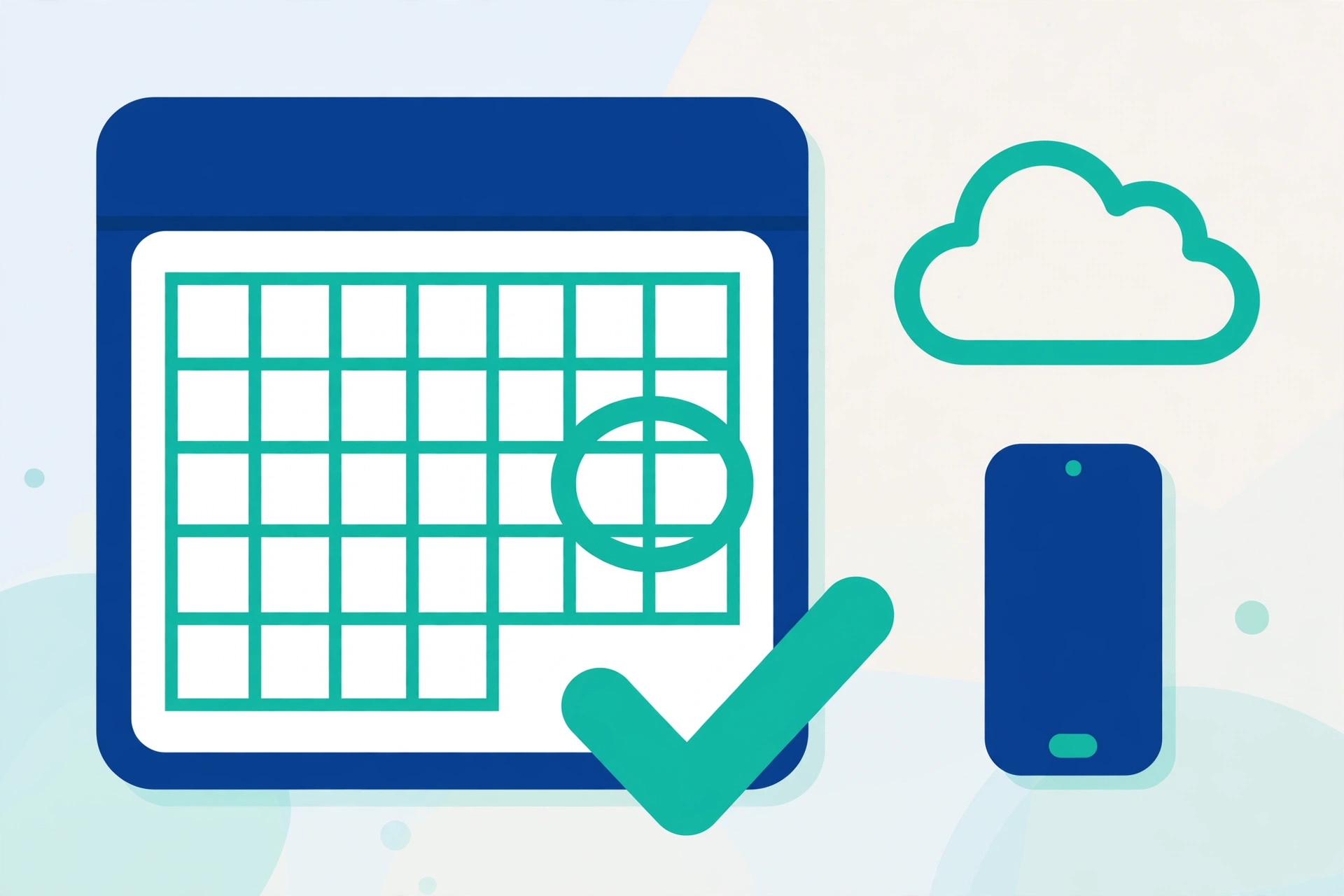
Automatic backups sometimes pause quietly, for example when your Google storage fills up or your account password changes. Once a month, spend two minutes on this check. Open Settings, Google, Backup and confirm the last backup date is recent, within the last day or two. Open Google Photos and confirm your newest photos appear there. Open WhatsApp’s Chat backup screen and confirm its date is recent too. Keeping your system current also keeps backups reliable, which is one more reason installing app and system updates matters. If any date is old, tap the backup button manually while on Wi-Fi and find out why it stopped, usually a full storage quota.
Three quick tips to keep your backup healthy
Tip 1: Never sign out of your Google account on your phone; your backup, contacts, and photos all depend on it. Tip 2: Watch your 15 GB quota. When Gmail and Photos fill it, backups silently stop, so delete large junk files a few times a year. Tip 3: Before selling, repairing, or giving away your phone, run a manual “Back up now” first. That final copy is the one your next phone will restore from.
Frequently Asked Questions
Is Google Drive backup really free?
Yes. Every Google account includes 15 GB of free storage, shared between Drive, Gmail, and Google Photos. For most people that is enough for a full phone backup plus photos in Storage saver quality. You only need a paid plan if you store very large photo and video collections.
How long does the first backup take?
It depends on how much data you have and your Wi-Fi speed, usually between ten minutes and one hour. Later backups are far quicker because the phone only uploads what changed. Starting the first backup while the phone charges overnight is the easiest approach.
Will my backup work if I switch to a different phone brand?
Yes. As long as the new phone is Android and you sign in with the same Google account during setup, your apps, contacts, messages, and settings will be offered for restore. Photos come back through Google Photos and chats through WhatsApp’s own restore, regardless of brand.
What happens if my Google storage is full?
Backups pause, and your phone may show a small warning you could easily miss. Your data stays on the phone but has no safe copy. Delete large email attachments, clear out old Drive files, or remove duplicate photos to free space, then run “Back up now” to restart the protection.
Pingback: How to Free Up Storage on Your Phone Without Losing Photos - TechTips by Hanzla
Pingback: How to Take a Screenshot on Any Android Phone - TechTips by Hanzla
Pingback: What Is an App Update and Why Should You Install It? - TechTips by Hanzla