You see something on your phone that you want to save: a funny message, a payment receipt, a map direction, or an error message you want to show someone. How do you capture it? The answer is a screenshot, a picture of exactly what is on your screen. Every Android phone can take screenshots, but the method is slightly different on different brands, and many people only know one way. In this guide, I will show you all the easy methods: buttons, gestures, and smart tricks, plus where your screenshots are saved and how to share or edit them.
Method 1: the button press (works on almost every phone)
This is the universal method. It works on Samsung, Xiaomi, Oppo, Vivo, Realme, Infinix, Tecno, and almost every other Android phone.
- Go to the screen you want to capture. Open the message, photo, or page first.
- Press and hold the Power button and the Volume Down button at the same time. Hold them together for about one second, then release.
- You will see a quick flash on the screen and usually hear a camera shutter sound. A small preview of the screenshot appears at the bottom or corner of the screen.
That is it. The screenshot is saved. On some very old phones, the combination is Power plus Home button instead, but on any phone from the last several years, Power plus Volume Down is the one. If it does not work the first time, the most common mistake is pressing the buttons one after another instead of together. Press them at exactly the same time, like pinching.
Method 2: gestures (on phones that support them)
Many modern phones let you take a screenshot with a simple hand movement, no buttons needed. This is very handy when your buttons are hard to reach or one of them is worn out.
- Three finger swipe down: On Xiaomi, Oppo, Vivo, Realme, and many other phones, swipe down on the screen with three fingers at once. You can turn this on under Settings, then Additional settings or Handy tools, then Gestures or Screenshot.
- Palm swipe: On Samsung phones, swipe the edge of your hand across the screen from right to left (or left to right). Enable it under Settings, Advanced features, Motions and gestures, Palm swipe to capture.
- Double tap: Some phones let you double tap the screen with a knuckle, or double tap the back of the phone. Check your phone’s gesture settings to see what is available.
Gestures feel strange the first time, but after a few tries they become the fastest way to capture your screen.
Method 3: the quick settings button
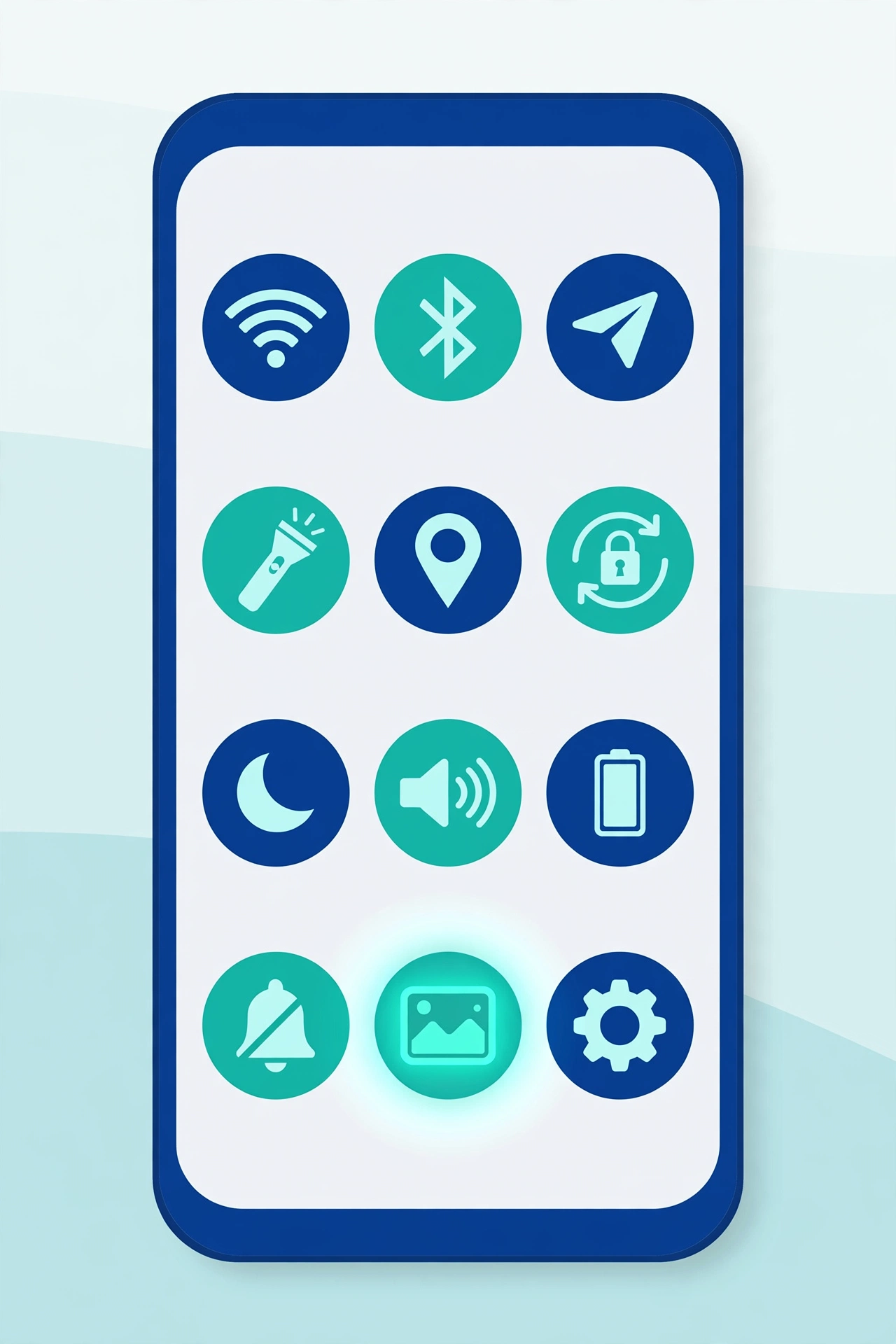
If buttons and gestures both feel awkward, there is a third way built into every Android phone. Swipe down from the top of the screen twice to open the full Quick Settings panel. Look for a button called Screenshot or Screen capture. Tap it, and your current screen is captured instantly.
If you do not see the Screenshot button, tap the small pencil or edit icon in the Quick Settings panel. This lets you add more buttons. Find Screenshot in the list and drag it into your active buttons. Now it is always one swipe away.
Method 4: ask Google Assistant
You can even take a screenshot with your voice. Say “Hey Google, take a screenshot,” or press and hold the home button (or swipe up from the bottom corner) to open Google Assistant, then say or type “take a screenshot.” This is perfect when your hands are busy or dirty, for example when following a cooking recipe on your phone.
How to take a scrolling screenshot (capture a whole page)
Sometimes one screen is not enough. You want to capture a whole long chat, a full article, or an entire receipt that needs scrolling. For this, Android has scrolling screenshots.
- Take a normal screenshot first, using any method above.
- When the small preview appears, look for a button that says Scroll, Capture more, or shows two arrows pointing up and down. Tap it.
- Your phone will slowly scroll down by itself, capturing more and more of the page. Tap Done or Save when you have captured everything you need.
The result is one tall image containing the whole page. Note: scrolling screenshots work in most apps like Chrome, WhatsApp chats, and Settings, but some apps block them for privacy, like banking apps. If the Scroll button does not appear, the app probably does not allow it.
Where to find your screenshots
All your screenshots are saved automatically in one place. Open your Gallery or Google Photos app, then look for an album called Screenshots. Every screenshot you take goes there. In Google Photos, screenshots are usually backed up to your Google account too, so you can see them on your computer as well. If you want that protection to work properly, it helps to back up your Android phone to Google Drive so your albums are safely stored online.
Over months and years, the Screenshots album can quietly grow to hundreds of images and eat a surprising amount of space. Every few months, it is worth freeing up storage on your phone without losing photos by deleting old screenshots you no longer need, like expired tickets and one-time error messages.
How to edit and share a screenshot
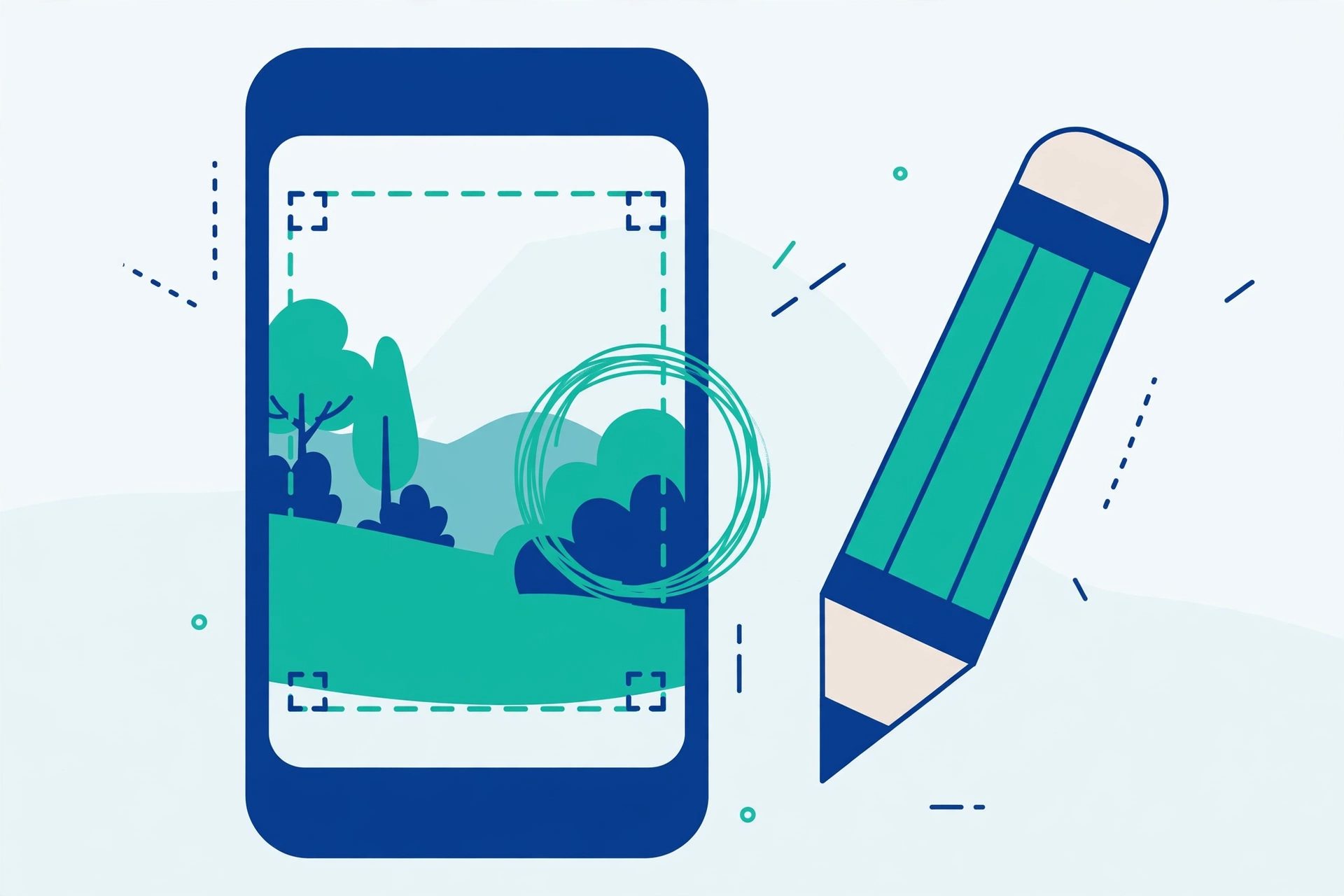
Right after taking a screenshot, tap the small preview that appears. This opens a quick editor where you can:
- Crop the image to keep only the important part
- Draw or write on it with a pen, useful for circling the important area
- Add text to explain what you are showing
Then tap Share to send it through WhatsApp, email, or any other app. Sharing a screenshot of an error message is also the best way to ask someone for help with a phone problem, because they can see exactly what you see.
Screenshot mistakes beginners often make
A few small habits will save you frustration. First, pressing Volume Up instead of Volume Down just turns the volume up and captures nothing; remember it is always the down button with Power. Second, holding the buttons too long can open the power menu or restart menu on some phones; a quick one-second press together is enough. Third, taking the screenshot too late: some pop-ups, like OTP codes in notifications, disappear in seconds, so be ready before the message arrives. Fourth, saving everything forever: screenshots feel weightless, but hundreds of them slow down your gallery and fill your storage. Finally, sharing without checking is the biggest mistake of all, which leads to the privacy warnings below.
Two privacy warnings about screenshots
First, remember that a screenshot captures everything on your screen, including notifications that pop up at that moment. Before sharing a screenshot, check it for personal details you did not mean to share: names in notifications, phone numbers, bank balances, or one-time passwords. Crop them out.
Second, be careful with screenshots of tickets, boarding passes, or QR codes. These contain barcodes that anyone could copy and misuse. Only share them privately with people you trust, never post them publicly. If a screenshot contains something sensitive that you do need to keep, storing it in the cloud is safer than leaving it on a lost phone, and our simple explanation of what cloud storage is and how it works shows why. For more screenshot safety advice, Google’s own Android help pages at support.google.com/android are a reliable reference.
Screenshots are one of the most useful everyday phone skills. Whether you use the buttons, a gesture, or your voice, you now know every way to capture your screen, plus how to capture long pages, find your images, and share them safely.
Frequently Asked Questions
Why does my phone open the power menu instead of taking a screenshot?
This happens when you hold the Power button slightly before pressing Volume Down, or hold both for too long. Press both buttons at exactly the same moment and release after about one second. If it still fails, try the Quick Settings Screenshot button instead.
Can I take a screenshot inside my banking app?
Usually not. Many banking and payment apps block screenshots on purpose, so nobody can capture your balance, card details, or transaction codes. If the screen flashes an error or the image comes out black, that protection is working as designed.
Where do screenshots go on a Samsung phone?
On Samsung phones, screenshots are saved in the Gallery app inside an album called Screenshots, and also stored in the DCIM, Screenshots folder. You can open them from the Gallery, from Google Photos, or from the notification that appears right after you capture one.
How do I screenshot only part of the screen?
Take a normal screenshot, then tap the preview and use the crop handles to cut away everything except the part you want. On Samsung phones, you can also use Smart Select from the Edge panel to capture a rectangle or oval directly.